검토 대기
한눈에 보기
이 섹션의 기능
사전 판매 시장을 검토, 승인 및 거부합니다. 다양한 생명주기 단계에서 사전 판매 상태를 모니터링하고, 소프트캡 (최소 목표) 진행 상황을 추적하며, 제출부터 완료 또는 거부까지 사전 판매를 관리합니다.
사용 대상
- 사전 판매 관리자: 사전 판매 제출을 검토하고 감독합니다
- 시니어 관리자: 사전 판매 시장을 승인하고 게시합니다
- 품질 검토자: 승인 전 사전 판매 품질 기준을 보장합니다
가장 일반적인 작업
- 사전 판매 제출 검토: 새 사전 판매 시장 요청 평가
- 사전 판매 상태 모니터링: 다양한 생명주기 단계에서 사전 판매 추적
- 사전 판매 승인: 품질 사전 판매 검증 및 승인
- 사전 판매 거부: 품질 기준을 충족하지 않는 사전 판매 제거
시작하기 전에
다음 권한이 있는지 확인하세요:
presale_management: 모든 사전 판매 관리 운영에 필요
개요
| 섹션 | 설명 |
|---|---|
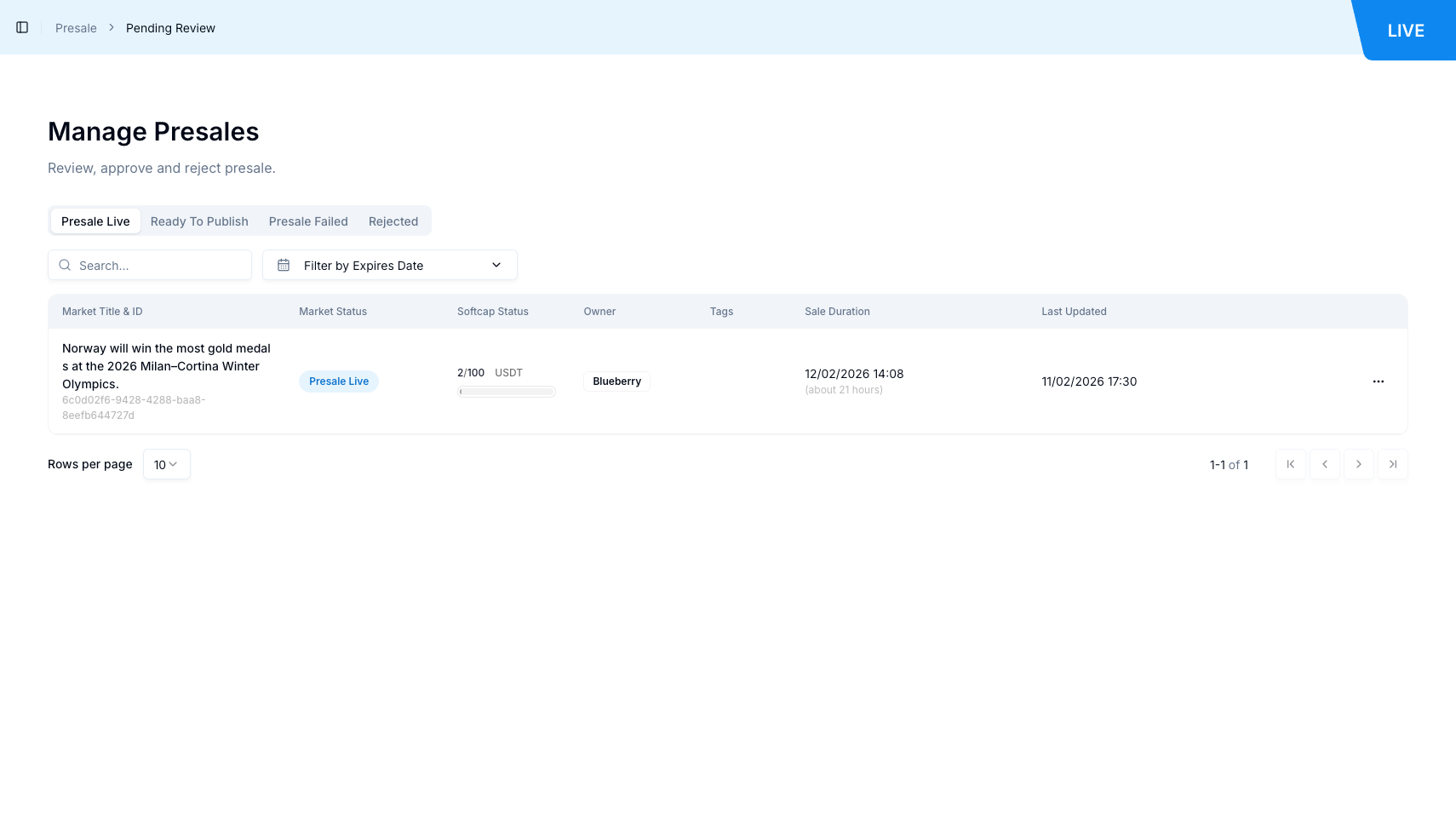
| 개요 | 전체 관리 통제가 가능한 사전 판매 시장 검토, 승인 및 관리를 위한 중앙 허브. |
| 주요 탭 | 사전 판매 진행 중, 게시 준비 완료, 사전 판매 실패, 거부됨 |
보기 및 검색 기능
| 기능 | 필요 권한 | 필요 화이트리스트 |
|---|---|---|
| 사전 판매 검토 | presale_management | 없음 |
| 사전 판매 검색 및 필터링 | presale_management | 없음 |
| 사전 판매 상세 정보 보기 | presale_management | 없음 |
관리 기능
| 기능 | 필요 권한 | 필요 화이트리스트 |
|---|---|---|
| 사전 판매 승인 | presale_management | Approve & Publish Presales |
| 사전 판매 게시 | presale_management | Approve & Publish Presales |
| 사전 판매 거부 | presale_management | Reject Presales |
| 사전 판매 편집 | presale_management | 없음 |
1. 사전 판매 관리 시퀀스
사전 판매 검토 대기 백오피스 관리자 프로세스에 대한 단계별 시퀀스 가이드입니다.
사전 판매 목록 보기 시퀀스
| 단계 | 작업 | 상세 내용 |
|---|---|---|
| 1 | 검토 대기 접근 | 왼쪽 사이드바에서 사전 판매 섹션으로 이동하고 "Pending Review"를 클릭합니다. |
| 2 | 페이지 헤더 확인 | 페이지 상단의 "Manage Presales" 제목을 확인합니다. |
| 3 | 페이지 설명 검토 | 제목 아래의 "Review, approve and reject presale." 설명을 확인합니다. |
| 4 | 사전 판매 탭 보기 | 네 개의 탭을 확인합니다: "Presale live", "Ready to publish", "Presale failed", "Rejected". |
| 5 | 사전 판매 테이블 보기 | 모든 사전 판매와 상세 정보가 표시된 테이블을 검토합니다. |
사전 판매 제출 검토 시퀀스
| 단계 | 작업 | 상세 내용 |
|---|---|---|
| 1 | 검토 대기 접근 | 메인 내비게이션 메뉴에서 Presale > Pending Review로 이동합니다. |
| 2 | 탭 선택 | 적절한 탭을 클릭합니다: "Presale live", "Ready to publish", "Presale failed" 또는 "Rejected". |
| 3 | 테이블에서 사전 판매 찾기 | 사전 판매 테이블에서 검토하려는 사전 판매를 찾습니다. |
| 4 | 시장 제목 링크 클릭 | 테이블에서 시장 제목을 클릭하여 새 탭에서 공개 사전 판매 페이지로 이동합니다. |
| 5 | 사전 판매 정보 검토 | 시장 질문, 소프트캡 (최소 목표) 대상, 판매 기간 및 생성자 정보를 포함한 사전 판매 상세 정보를 확인합니다. |
| 6 | 관리자 패널로 돌아가기 | 관리자 패널로 다시 이동하여 사전 판매에 대한 조치를 취합니다. |
2. 사전 판매 탭 및 상태 개요
주요 탭
사전 판매 검토 대기 페이지는 사전 판매 생명주기의 각 단계를 나타내는 네 개의 기본 탭으로 구성됩니다:
| 탭 | 설명 |
|---|---|
| Presale live | 사용자로부터 기여를 적극적으로 수락하는 사전 판매. 모든 플랫폼 사용자에게 표시됩니다. |
| Ready to publish | 관리자가 승인했지만 아직 플랫폼에 게시되지 않은 사전 판매. 추가 거래 활동을 위해 준비되었습니다. |
| Presale failed | 만료 전에 소프트캡 (최소 목표) 요구 사항을 충족하지 못한 사전 판매. |
| Rejected | 품질 기준을 충족하지 못하여 직원에 의해 거부된 사전 판매. |
사전 판매 상태 생명주기
| 상태 | 탭 | 설명 | 사용 가능한 작업 |
|---|---|---|---|
| Ready to publish | Ready to publish | 제출 및 승인 후 초기 상태 | 게시, 거부, 편집 |
| Presale Live | Presale live | 게시되어 적극적으로 기여를 수락 중 | 모니터링, 편집 |
| Presale Failed | Presale failed | 만료 전에 소프트캡 (최소 목표)에 도달하지 못함 | 상세 정보 보기 |
| Rejected | Rejected | 품질 기준을 충족하지 못함 | 편집, 재제출 |
3. 사전 판매 테이블 구조
사전 판매 테이블 열
| 열 | 설명 |
|---|---|
| 시장 제목 및 ID | 새 탭에서 공개 사전 판매 페이지를 여는 클릭 가능한 링크인 사전 판매 시장 제목. 제목 아래에 고유 식별자 (UUID 형식)가 표시됩니다 (예: "6c0d02f6-9428-4288-baa8-8eefb644727d"). |
| 시장 상태 | 컬러 태그로 표시되는 현재 상태: "Presale Live" (파란색 태그), "Ready to publish", "Presale Failed" 또는 "Rejected". |
| 소프트캡 (최소 목표) 상태 | 소프트캡 (최소 목표) 대비 현재 기여를 보여주는 진행 표시기. "X / Y USDT" 형식으로 표시됩니다 (예: "2 / 100 USDT") 아래에 시각적 진행을 보여주는 진행 바가 있습니다. |
| 소유자 | 사용자 프로필 페이지로 이동하는 클릭 가능한 링크로 표시되는 사전 판매 생성자의 사용자명 (예: "Blueberry"). |
| 태그 | 사전 판매와 관련된 태그. 일부 사전 판매의 경우 비어 있을 수 있습니다. |
| 판매 기간 | DD/MM/YYYY HH:MM 형식으로 표시되는 사전 판매 기간의 종료 날짜 및 시간 (예: "12/02/2026 14:08") 아래에 상대 시간 표시기가 있습니다 (예: "(about 22 hours)"). |
| 최종 수정일 | DD/MM/YYYY HH:MM 형식으로 표시되는 사전 판매의 마지막 수정 날짜 및 시간 (예: "11/02/2026 15:04"). |
| 작업 | 승인, 거부 및 편집 작업을 포함한 사전 판매 관리 옵션에 접근할 수 있는 항목 편집 버튼 (점 세 개 아이콘). |
4. 사전 판매 승인 시퀀스
사전 판매 승인 시퀀스
| 단계 | 작업 | 상세 내용 |
|---|---|---|
| 1 | 검토 대기 접근 | 메인 내비게이션 메뉴에서 Presale > Pending Review로 이동합니다. |
| 2 | 게시 준비 완료 탭 선택 | "Ready to publish" 탭을 클릭하여 승인 대기 중인 사전 판매를 봅니다. |
| 3 | 승인할 사전 판매 찾기 | 테이블에서 승인하려는 사전 판매를 찾습니다. |
| 4 | 사전 판매 상세 정보 검토 | 시장 제목을 클릭하여 전체 사전 판매 상세 정보를 보고 품질 기준을 확인합니다. |
| 5 | 편집 메뉴 열기 | 선택한 사전 판매의 작업 열에서 "Edit item" 버튼 (점 세 개 아이콘)을 클릭합니다. |
| 6 | 승인 작업 선택 | 컨텍스트 메뉴에서 승인 또는 게시 옵션을 선택합니다. |
| 7 | 승인 확인 | 확인 메시지가 나타나면 승인 작업을 확인합니다. |
| 8 | 상태 변경 확인 | 사전 판매가 "Presale live" 탭으로 이동하고 모든 플랫폼 사용자에게 표시됩니다. |
5. 사전 판매 거부 시퀀스
사전 판매 거부 시퀀스
| 단계 | 작업 | 상세 내용 |
|---|---|---|
| 1 | 검토 대기 접근 | 메인 내비게이션 메뉴에서 Presale > Pending Review로 이동합니다. |
| 2 | 적절한 탭 선택 | 거부하려는 사전 판매가 포함된 탭을 클릭합니다 (일반적으로 "Ready to publish" 또는 "Presale live"). |
| 3 | 거부할 사전 판매 찾기 | 테이블에서 거부하려는 사전 판매를 찾습니다. |
| 4 | 사전 판매 상세 정보 검토 | 품질 기준에 따라 사전 판매가 거부되어야 하는지 확인합니다. |
| 5 | 편집 메뉴 열기 | 선택한 사전 판매의 작업 열에서 "Edit item" 버튼 (점 세 개 아이콘)을 클릭합니다. |
| 6 | 거부 작업 선택 | 컨텍스트 메뉴에서 거부 옵션을 선택합니다. |
| 7 | 거부 확인 | 확인 메시지가 나타나면 거부 작업을 확인합니다. |
| 8 | 이동 확인 | 사전 판매가 "Rejected" 탭으로 이동하고 일반 사용자에게 더 이상 표시되지 않습니다. |
6. 검색 및 필터 작업
검색 기능
| 단계 | 작업 | 상세 내용 |
|---|---|---|
| 1 | 검색 상자 접근 | 페이지 상단에 있는 "Search..." 플레이스홀더가 있는 검색 텍스트 박스를 찾습니다. |
| 2 | 검색어 입력 | 시장 제목 또는 기타 검색 가능한 필드로 사전 판매를 필터링하기 위해 키워드를 입력합니다. |
| 3 | 필터링된 결과 보기 | 검색 기준과 일치하는 사전 판매를 확인합니다. 입력할 때 테이블이 자동으로 업데이트됩니다. |
| 4 | 검색 지우기 | 모든 사전 판매를 다시 표시하려면 검색어를 제거합니다. |
만료 날짜 필터
| 단계 | 작업 | 상세 내용 |
|---|---|---|
| 1 | 필터 버튼 접근 | 페이지 상단에 있는 "Filter by Expires Date" 버튼을 찾습니다. |
| 2 | 필터 버튼 클릭 | "Filter by Expires Date" 버튼을 클릭하여 날짜 범위 선택기를 엽니다. |
| 3 | 날짜 범위 선택 | 필터링하려는 만료 날짜 범위의 시작 및 종료 날짜를 선택합니다. |
| 4 | 필터링된 결과 보기 | 선택한 범위 내의 만료 날짜를 가진 사전 판매를 확인합니다. |
| 5 | 필터 지우기 | 모든 사전 판매를 다시 표시하려면 날짜 필터를 제거합니다. |
검색 동작
| 동작 | 설명 |
|---|---|
| 실시간 필터링 | 입력할 때 테이블이 동적으로 업데이트되어 검색 결과에 대한 즉각적인 피드백을 제공합니다. |
| 다중 필드 검색 | 검색 필드는 사전 판매 제목 및 기타 검색 가능한 필드에 대해 쿼리합니다. |
| 부분 일치 | 전체 제목을 모를 때 부분 문자열을 사용하여 사전 판매를 검색할 수 있습니다. |
| 결과 없음 표시 | 검색과 일치하는 사전 판매가 없으면 테이블에 "No data found." 메시지가 표시됩니다. |
7. 사전 판매 목록 보기 기능
사전 판매 목록 보기 시퀀스
| 단계 | 작업 | 상세 내용 |
|---|---|---|
| 1 | 검토 대기 접근 | 메인 내비게이션 메뉴에서 Presale > Pending Review로 이동합니다. |
| 2 | 페이지 헤더 확인 | 페이지 상단의 "Manage Presales" 제목을 확인합니다. |
| 3 | 페이지 설명 확인 | 제목 아래의 "Review, approve and reject presale." 설명을 확인합니다. |
| 4 | 사전 판매 탭 보기 | 네 개의 탭을 확인합니다: "Presale live", "Ready to publish", "Presale failed", "Rejected". |
| 5 | 사전 판매 테이블 보기 | 모든 사전 판매와 계정 상세 정보가 표시된 테이블을 검토합니다. |
| 6 | 사전 판매 정보 검토 | 각 행에는 시장 제목 및 ID, 시장 상태, 소프트캡 (최소 목표) 상태, 소유자, 태그, 판매 기간, 최종 수정일 및 작업이 표시됩니다. |
8. 일반적인 워크플로우
사전 판매 검토 및 승인
| 단계 | 작업 |
|---|---|
| 1 | Presale > Pending Review로 이동합니다 |
| 2 | "Ready to publish" 탭을 클릭합니다 |
| 3 | 시장 제목을 클릭하여 사전 판매 상세 정보를 봅니다 |
| 4 | 사전 판매 품질을 검토하고 기준을 충족하는지 확인합니다 |
| 5 | 관리자 패널로 돌아가서 "Edit item" 버튼을 클릭합니다 |
| 6 | 승인 또는 게시 작업을 선택합니다 |
| 7 | 승인을 확인합니다 |
| 8 | 사전 판매가 "Presale live" 탭에 나타나는지 확인합니다 |
진행 중인 사전 판매 진행 상황 모니터링
| 단계 | 작업 |
|---|---|
| 1 | Presale > Pending Review로 이동합니다 |
| 2 | "Presale live" 탭을 클릭합니다 |
| 3 | 진행 상황을 확인하기 위해 소프트캡 (최소 목표) 상태 열을 검토합니다 (예: "2 / 100 USDT") |
| 4 | 자금 조달 진행 상황을 시각화하기 위해 진행 바를 확인합니다 |
| 5 | 남은 시간을 확인하기 위해 판매 기간을 검토합니다 |
| 6 | 상세 사전 판매 정보를 보기 위해 시장 제목을 클릭합니다 |
사전 판매 거부
| 단계 | 작업 |
|---|---|
| 1 | Presale > Pending Review로 이동합니다 |
| 2 | 거부할 사전 판매가 포함된 적절한 탭을 선택합니다 |
| 3 | 사전 판매 상세 정보를 검토하기 위해 시장 제목을 클릭합니다 |
| 4 | 품질 기준에 따라 사전 판매가 거부되어야 하는지 확인합니다 |
| 5 | 관리자 패널로 돌아가서 "Edit item" 버튼을 클릭합니다 |
| 6 | 메뉴에서 거부 작업을 선택합니다 |
| 7 | 거부를 확인합니다 |
| 8 | 사전 판매가 "Rejected" 탭에 나타나는지 확인합니다 |
용어집
| 용어 | 설명 |
|---|---|
| 사전 판매 | 새 예측 시장이 라이브되기 전에 사용자가 기여하여 생성하는 자금 조달 메커니즘. |
| Presale Live | 사용자로부터 기여를 적극적으로 수락하는 사전 판매 상태. 시장 상태 열에 파란색 태그로 표시됩니다. |
| Ready to publish | 관리자가 승인했지만 아직 공개 기여를 위해 활성화되지 않은 사전 판매 상태. |
| Presale Failed | 만료 전에 최소 소프트캡 (최소 목표) 자금 조달 대상에 도달하지 않고 종료된 사전 판매 상태. |
| 거부됨 | 품질 기준을 충족하지 못하여 직원에 의해 거부된 사전 판매 상태. |
| 소프트캡 (최소 목표) | 사전 판매가 성공하고 시장을 생성하기 위해 도달해야 하는 최소 자금 조달 대상. |
| 소프트캡 (최소 목표) 상태 | 소프트캡 (최소 목표) 대비 현재 기여를 보여주는 진행 표시기로, "X / Y USDT" 형식으로 진행 바와 함께 표시됩니다. |
| 시장 제목 및 ID | 공개 사전 판매 페이지를 여는 클릭 가능한 링크인 사전 판매 시장 제목으로, 아래에 고유 식별자 (UUID)가 표시됩니다. |
| 소유자 | 사용자 프로필 페이지로 이동하는 클릭 가능한 링크로 표시되는 사전 판매 생성자의 사용자명. |
| 판매 기간 | DD/MM/YYYY HH:MM 형식으로 표시되는 사전 판매 기간의 종료 날짜 및 시간으로, 상대 시간 표시기가 포함됩니다 (예: "about 22 hours"). |
| 최종 수정일 | DD/MM/YYYY HH:MM 형식으로 표시되는 사전 판매의 가장 최근 수정 날짜 및 시간. |
| 항목 편집 버튼 | 승인, 거부 및 편집 작업을 포함한 사전 판매 관리 옵션이 있는 컨텍스트 메뉴를 여는 작업 열의 작업 버튼 (점 세 개 아이콘). |
| 시장 상태 | 컬러 태그로 표시되는 사전 판매의 현재 생명주기 단계: "Presale Live" (파란색), "Ready to publish", "Presale Failed" 또는 "Rejected". |
| 태그 | 사전 판매와 관련된 태그. 일부 사전 판매의 경우 비어 있을 수 있습니다. |
| 검색 필드 | 시장 제목 또는 기타 검색 가능한 필드로 사전 판매를 필터링하기 위한 페이지 상단의 텍스트 입력 필드. |
| 만료 날짜 필터 | 만료 날짜로 사전 판매를 필터링하기 위한 날짜 범위 선택기를 여는 버튼. |
| 실시간 필터링 | 제출을 요구하지 않고 키워드가 입력될 때 테이블 결과를 동적으로 업데이트하는 검색 기능. |
| 진행 바 | 소프트캡 (최소 목표) 상태 열에서 소프트캡 (최소 목표) 대상 대비 기여 진행 상황을 보여주는 시각적 표시기. |
| 사전 판매 관리 | 사전 판매 검토 대기 페이지 상단에 표시되는 페이지 제목. |
| 검토 대기 | 내비게이션 메뉴의 Presale > Pending Review를 통해 접근 가능한 사전 판매 관리를 위한 관리 섹션. |