Pending Review
At a Glance
What This Section Does
Review, approve, and reject presale markets. Monitor presale status across different lifecycle stages, track softcap progress, and manage presales from submission through completion or rejection.
Who Should Use This
- Presale Managers: Review and oversee presale submissions
- Senior Admins: Approve and publish presale markets
- Quality Reviewers: Ensure presale quality standards before approval
Most Common Tasks
- Review Presale Submissions: Evaluate new presale market requests
- Monitor Presale Status: Track presales across different lifecycle stages
- Approve Presales: Validate and approve quality presales
- Reject Presales: Remove presales that don't meet quality standards
Before You Start
Make sure you have this permission:
presale_management: Required for all presale management operations
Overview
| Section | Description |
|---|---|
| Overview | Central hub for reviewing, approving, and managing presale markets with full administrative control. |
| Main Tabs | Presale live, Ready to publish, Presale failed, Rejected |
View & Search Features
| Feature | Permission Required | Whitelist Required |
|---|---|---|
| Reviewing Presales | presale_management | None |
| Searching & Filtering Presales | presale_management | None |
| Viewing Presale Details | presale_management | None |
Manage Features
| Feature | Permission Required | Whitelist Required |
|---|---|---|
| Approving Presales | presale_management | Approve & Publish Presales |
| Publishing Presales | presale_management | Approve & Publish Presales |
| Rejecting Presales | presale_management | Reject Presales |
| Editing Presales | presale_management | None |
1. Presale Management Sequence
Step-by-step sequence guide for all Presale Pending Review backoffice admin processes.
Presale List Viewing Sequence
| Step | Action | Details |
|---|---|---|
| 1 | Access Pending Review | Navigate to Presale section in the left sidebar and click "Pending Review". |
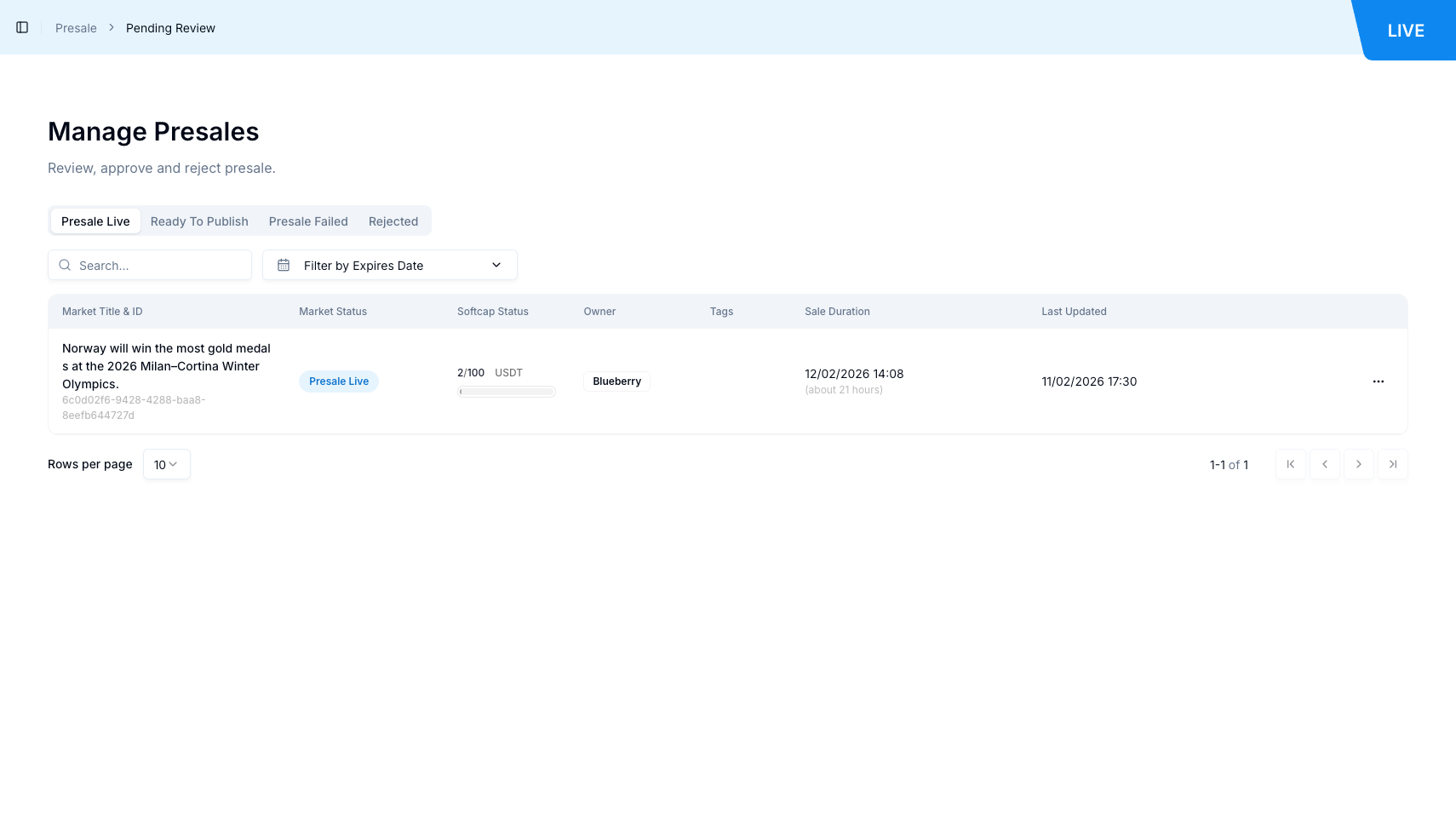
| 2 | View Page Header | Review the page title "Manage Presales" at the top of the page. |
| 3 | Review Page Description | View the description "Review, approve and reject presale." below the title. |
| 4 | View Presale Tabs | Review the four tabs: "Presale live", "Ready to publish", "Presale failed", "Rejected". |
| 5 | View Presale Table | Review the table displaying all presales with their details. |
Review Presale Submissions Sequence
| Step | Action | Details |
|---|---|---|
| 1 | Access Pending Review | Navigate to Presale > Pending Review from the main navigation menu. |
| 2 | Select Tab | Click on the appropriate tab: "Presale live", "Ready to publish", "Presale failed", or "Rejected". |
| 3 | Locate Presale in Table | Find the presale you want to review in the presale table. |
| 4 | Click Market Title Link | Click on the market title in the table to navigate to the public presale page in a new tab. |
| 5 | Review Presale Information | View presale details including market question, softcap target, sale duration, and creator information. |
| 6 | Return to Admin Panel | Navigate back to the admin panel to take action on the presale. |
2. Presale Tabs & Status Overview
Main Tabs
The Presale Pending Review page is organized into four primary tabs, each representing different stages in a presale's lifecycle:
| Tab | Description |
|---|---|
| Presale live | Presales actively accepting contributions from users. Visible to all platform users. |
| Ready to publish | Presales approved by admin but not yet published to the platform. Ready for further trading activities. |
| Presale failed | Presales that did not meet softcap requirements before expiration. |
| Rejected | Presales that did not meet quality standards and were rejected by staff. |
Presale Status Lifecycle
| Status | Tab | Description | Available Actions |
|---|---|---|---|
| Ready to publish | Ready to publish | Initial state after submission and approval | Publish, Reject, Edit |
| Presale Live | Presale live | Published and actively accepting contributions | Monitor, Edit |
| Presale Failed | Presale failed | Did not reach softcap before expiration | View Details |
| Rejected | Rejected | Did not meet quality standards | Edit, Resubmit |
3. Presale Table Structure
Presale Table Columns
| Column | Description |
|---|---|
| Market Title & ID | The presale market title as a clickable link that opens the public presale page in a new tab. The unique identifier (UUID format) is displayed below the title (e.g., "6c0d02f6-9428-4288-baa8-8eefb644727d"). |
| Market Status | Current status displayed as a colored tag: "Presale Live" (blue tag), "Ready to publish", "Presale Failed", or "Rejected". |
| Softcap Status | Progress indicator showing current contributions versus softcap target. Displays as "X / Y USDT" format (e.g., "2 / 100 USDT") with a progress bar below showing visual progress. |
| Owner | Username of the presale creator displayed as a clickable link that navigates to the user profile page (e.g., "Blueberry"). |
| Tags | Tags associated with the presale. May be empty for some presales. |
| Sale Duration | End date and time for the presale period displayed in DD/MM/YYYY HH:MM format (e.g., "12/02/2026 14:08") with a relative time indicator below (e.g., "(about 22 hours)"). |
| Last Updated | Date and time of last modification to the presale displayed in DD/MM/YYYY HH:MM format (e.g., "11/02/2026 15:04"). |
| Actions | Edit item button (three dots icon) providing access to presale management options including approve, reject, and edit actions. |
4. Approve Presale Sequence
Approve Presale Sequence
| Step | Action | Details |
|---|---|---|
| 1 | Access Pending Review | Navigate to Presale > Pending Review from the main navigation menu. |
| 2 | Select Ready to Publish Tab | Click on the "Ready to publish" tab to view presales awaiting approval. |
| 3 | Locate Presale to Approve | Find the presale you want to approve in the table. |
| 4 | Review Presale Details | Click on the market title to view full presale details and verify quality standards. |
| 5 | Open Edit Menu | Click the "Edit item" button (three dots icon) in the Actions column for the selected presale. |
| 6 | Select Approve Action | Choose the approve or publish option from the context menu. |
| 7 | Confirm Approval | Confirm the approval action when prompted. |
| 8 | Verify Status Change | The presale moves to "Presale live" tab and becomes visible to all platform users. |
5. Reject Presale Sequence
Reject Presale Sequence
| Step | Action | Details |
|---|---|---|
| 1 | Access Pending Review | Navigate to Presale > Pending Review from the main navigation menu. |
| 2 | Select Appropriate Tab | Click on the tab containing the presale you want to reject (typically "Ready to publish" or "Presale live"). |
| 3 | Locate Presale to Reject | Find the presale you want to reject in the table. |
| 4 | Review Presale Details | Verify that the presale should be rejected based on quality standards. |
| 5 | Open Edit Menu | Click the "Edit item" button (three dots icon) in the Actions column for the selected presale. |
| 6 | Select Reject Action | Choose the reject option from the context menu. |
| 7 | Confirm Rejection | Confirm the rejection action when prompted. |
| 8 | Verify Movement | The presale moves to the "Rejected" tab and is no longer visible to regular users. |
6. Search & Filter Operations
Search Functionality
| Step | Action | Details |
|---|---|---|
| 1 | Access Search Box | Locate the search textbox at the top of the page with placeholder "Search...". |
| 2 | Enter Search Terms | Type keywords to filter presales by market title or other searchable fields. |
| 3 | View Filtered Results | See presales matching search criteria. Table updates automatically as you type. |
| 4 | Clear Search | Remove search terms to show all presales again. |
Filter by Expires Date
| Step | Action | Details |
|---|---|---|
| 1 | Access Filter Button | Locate the "Filter by Expires Date" button at the top of the page. |
| 2 | Click Filter Button | Click the "Filter by Expires Date" button to open the date range selector. |
| 3 | Select Date Range | Choose the start and end dates for the expiration date range you want to filter by. |
| 4 | View Filtered Results | See presales with expiration dates within the selected range. |
| 5 | Clear Filter | Remove the date filter to show all presales again. |
Search Behavior
| Behavior | Description |
|---|---|
| Real Time Filtering | The table updates dynamically as you type, providing instant feedback on search results. |
| Multi Field Search | The search field queries across presale titles and other searchable fields. |
| Partial Matching | You can search using partial strings to find presales when you don't know the complete title. |
| No Results Display | When no presales match your search, the table shows "No data found." message. |
7. Presale List Viewing Function
Presale List Viewing Sequence
| Step | Action | Details |
|---|---|---|
| 1 | Access Pending Review | Navigate to Presale > Pending Review from the main navigation menu. |
| 2 | View Page Header | Review the page title "Manage Presales" at the top of the page. |
| 3 | View Page Description | Review the description "Review, approve and reject presale." below the title. |
| 4 | View Presale Tabs | Review the four tabs: "Presale live", "Ready to publish", "Presale failed", "Rejected". |
| 5 | View Presale Table | Review the table displaying all presales with their account details. |
| 6 | Review Presale Information | Each row shows Market Title & ID, Market Status, Softcap Status, Owner, Tags, Sale Duration, Last Updated, and Actions. |
8. Common Workflows
Review and Approve a Presale
| Step | Action |
|---|---|
| 1 | Navigate to Presale > Pending Review |
| 2 | Click on "Ready to publish" tab |
| 3 | Click on the market title to view presale details |
| 4 | Review presale quality and verify it meets standards |
| 5 | Return to admin panel and click "Edit item" button |
| 6 | Select approve or publish action |
| 7 | Confirm the approval |
| 8 | Verify presale appears in "Presale live" tab |
Monitor Live Presale Progress
| Step | Action |
|---|---|
| 1 | Navigate to Presale > Pending Review |
| 2 | Click on "Presale live" tab |
| 3 | Review softcap status column to see progress (e.g., "2 / 100 USDT") |
| 4 | Check progress bar to visualize funding progress |
| 5 | Review sale duration to see time remaining |
| 6 | Click on market title to view detailed presale information |
Reject a Presale
| Step | Action |
|---|---|
| 1 | Navigate to Presale > Pending Review |
| 2 | Select the appropriate tab containing the presale to reject |
| 3 | Click on the market title to review presale details |
| 4 | Verify the presale should be rejected based on quality standards |
| 5 | Return to admin panel and click "Edit item" button |
| 6 | Select reject action from the menu |
| 7 | Confirm the rejection |
| 8 | Verify presale appears in "Rejected" tab |
Product Glossary
| Term | Description |
|---|---|
| Presale | A funding mechanism where users contribute to create a new prediction market before it goes live. |
| Presale Live | Status for presales actively accepting contributions from users. Displayed as a blue tag in the Market Status column. |
| Ready to publish | Status for presales approved by admin but not yet activated for public contribution. |
| Presale Failed | Status for presales that ended without reaching their minimum softcap funding target before expiration. |
| Rejected | Status for presales that did not meet quality standards and were rejected by staff. |
| Softcap | Minimum funding target that must be reached for a presale to succeed and create the market. |
| Softcap Status | Progress indicator showing current contributions versus softcap target, displayed as "X / Y USDT" format with a progress bar. |
| Market Title & ID | The presale market title as a clickable link that opens the public presale page, with the unique identifier (UUID) displayed below. |
| Owner | Username of the presale creator displayed as a clickable link that navigates to the user profile page. |
| Sale Duration | End date and time for the presale period displayed in DD/MM/YYYY HH:MM format with a relative time indicator (e.g., "about 22 hours"). |
| Last Updated | Date and time of the most recent modification to the presale displayed in DD/MM/YYYY HH:MM format. |
| Edit Item Button | Action button (three dots icon) in the Actions column that opens a context menu with presale management options including approve, reject, and edit actions. |
| Market Status | Current lifecycle stage of the presale displayed as a colored tag: "Presale Live" (blue), "Ready to publish", "Presale Failed", or "Rejected". |
| Tags | Tags associated with the presale. May be empty for some presales. |
| Search Field | Text input field at the top of the page for filtering presales by market title or other searchable fields. |
| Filter by Expires Date | Button that opens a date range selector to filter presales by their expiration date. |
| Real Time Filtering | Search functionality that updates table results dynamically as keywords are typed without requiring submission. |
| Progress Bar | Visual indicator in the Softcap Status column showing contribution progress toward softcap target. |
| Manage Presales | Page title displayed at the top of the Presale Pending Review page. |
| Pending Review | Administrative section for managing presales, accessible via Presale > Pending Review in the navigation menu. |