사전 판매 시장
한눈에 보기
이 섹션의 기능
생성자가 제출한 시장을 승인부터 결과 처리까지 전체 생명주기에 걸쳐 관리합니다. 시장 품질을 검토하고, 승인된 시장을 게시하고, 라이브 거래를 모니터링하고, 종료된 시장에 대한 결과 처리를 제안하고, 최종 결과를 확인합니다.
사용 대상
- 시장 관리자: 생성자 제출물 검토 및 승인
- 시니어 관리자: 시장 게시 및 결과 처리 확인
- 품질 검토자: 생성자 시장이 플랫폼 기준을 충족하는지 확인
주요 작업
- 승인된 시장 검토 및 게시
- 라이브 거래 시장 모니터링
- 종료된 시장에 대한 결과 처리 제안
- 최종 결과 처리 결과 확인
- 시장 주문 및 거래 활동 보기
시작하기 전에
다음 권한이 있는지 확인하세요:
creator_market: 모든 관리자 시장 운영에 필요- 화이트리스트: "
Resolve & Approve Resolution": 결과 결정에 필요. - 화이트리스트: "
Approve Trading Fee Changes": 거래 수수료, 병합 수수료, 상환 수수료 비율 조정에 필요.
개요
| 섹션 | 설명 |
|---|---|
| 개요 | 생성자가 제출한 예측 시장을 검토, 승인, 게시 및 관리하는 중앙 허브. |
| 주요 탭 | 승인됨, 진행 중, 종료됨, 결과 처리 제안됨, 결과 처리 완료됨, 보관됨. |
1. 시장 탭 및 상태 개요
주요 탭
생성자 시장 페이지는 시장 생명주기의 각 단계를 나타내는 여섯 개의 기본 탭으로 구성되어 있습니다:
| 탭 | 설명 |
|---|---|
| 승인됨 | 생성자가 승인하고 관리자 게시를 기다리는 시장. |
| 진행 중 | 게시되어 플랫폼에서 활발히 거래되고 있는 시장. |
| 종료됨 | 만료일이 지났지만 아직 결과가 제안되지 않은 시장. |
| 결과 처리 제안됨 | 결과가 제안되어 최종 관리자 확인을 기다리고 있는 시장. |
| 결과 처리 완료됨 | 최종 결과가 확인되고 지급이 처리된 시장. |
| 보관됨 | 데이터를 보존하면서 진행 중 표시에서 제거된 시장. |
생성자 시장 상태 생명주기
| 상태 | 탭 | 설명 | 사용 가능한 작업 |
|---|---|---|---|
| 승인됨 | 승인됨 | 생성자가 제출하고 자체 승인한 시장 | 게시, 항목 편집 |
| 진행 중 | 진행 중 | 게시되어 활발히 거래 중 | 항목 편집 (주문 보기, 주문 생성, 수수료 설정 등의 메뉴 열림) |
| 종료됨 | 종료됨 | 거래 마감, 결과 처리 제안 대기 중 | 항목 편집 (결과 처리, 지급 비율로 결과 처리 등의 메뉴 열림) |
| 결과 처리 보류 중 | 결과 처리 제안됨 | 결과가 제안됨 | 결과 처리 (확인용), 항목 편집 |
| 결과 처리 완료됨 | 결과 처리 완료됨 | 최종 결과 확인됨, 지급 처리됨 | 주문 보기, 항목 편집 |
| 보관됨 | 보관됨 | 진행 중 활성 표시에서 제거됨 | 항목 편집 |
.png)
생성자 시장 상태 생명주기
주요 참고 사항
-
시장은 다음 상태를 거칩니다: 승인됨 → 진행 중 → 종료됨 → 결과 처리 보류 중 → 결과 처리 완료됨.
-
각 상태에는 특정 사용 가능한 작업이 있습니다. 자세한 내용은 위의 상태 생명주기 테이블을 참조하세요.
-
생성자 시장은 플랫폼의 생성자 커뮤니티에서 시작된다는 점에서 관리자 시장과 다릅니다.
-
만료일 색상 표시: 생성자 시장을 효율적으로 관리할 수 있도록 각 시장 행은 만료 근접도에 따라 색상으로 구분됩니다:
- 목적:
색상 강조 표시는 승인된 시장 중 만료 전에 적시에 조치가 필요한 시장을 빠르게 식별할 수 있는 시각적 단서를 제공합니다.
색상 의미 조치 주황색 시장이 곧 만료됩니다 (24시간 이내). 즉시 검토 및 게시를 우선시하세요. 노란색 시장이 만료에 가까워지고 있습니다 (5일 이내). 세부 사항을 검토하고 곧 게시 또는 결과 처리를 준비하세요. 흰색 시장 만료가 아직 멀었습니다. 즉각적인 조치가 필요하지 않습니다. 계속 모니터링하세요. - 목적:
2. 시장 테이블 설명
| 열 | 설명 | 가용성 |
|---|---|---|
| 시장 제목 및 ID | 클릭 가능한 링크로 표시되는 시장 질문 제목. 제목 아래에 표시되는 고유 UUID. 클릭하면 시장 상세 보기가 열립니다. | 모든 탭 |
| 시장 상태 | 현재 생명주기 상태 (승인됨, 진행 중, 종료됨, 결과 처리 보류 중, 결과 처리 완료됨, 보관됨)와 시각적 상태 배지 | 모든 탭 |
| 제안된 결과 처리 | 최종 확인을 기다리거나 결과 처리 완료된 시장의 제안된 결과 (Yes 또는 No) | 결과 처리 제안됨, 결과 처리 완료됨 탭만 |
| 카테고리 | 시장 카테고리 배지 (Politics, Tech, Sport, E-Sports, Entertainment, Economy, Crypto, Culture, Trending 등) | 모든 탭 |
| 소유자 | 시장을 제출한 시장 생성자의 사용자 이름 | 모든 탭 |
| 태그 | 시장 검색 및 필터링을 위한 보조 분류 태그 | 모든 탭 |
| 만료일 | 시장이 만료되고 거래가 마감되는 날짜 및 시간 (형식: DD/MM/YYYY HH:MM) | 모든 탭 |
| 이의 제기 | 트레이더가 제안된 결과 처리에 이의를 제기했는지를 나타내는 이의 제기 상태 (만료됨, 활성 등) | 결과 처리 제안됨 탭만 |
| 최종 업데이트 | 시장이 마지막으로 편집된 시점을 나타내는 가장 최근 수정 타임스탬프 | 모든 탭 |
| 작업 | 시장 상태별 빠른 작업 버튼. 일반적으로 승인됨 시장에 "Publish", 종료됨/결과 처리 제안됨 시장에 "Resolve", 결과 처리 완료됨 시장에 "View Orders", 추가 작업 접근을 위한 "Edit item" 버튼 포함 | 모든 탭 |
3. 승인된 시장 게시
목적
생성자가 승인한 시장을 라이브로 만들어 플랫폼에서 거래할 수 있게 합니다.
사용 시기
승인됨 탭에서 품질 기준을 충족하고 공개 거래 준비가 된 시장을 검토할 때 사용합니다.
단계
| 단계 | 작업 | 세부 사항 |
|---|---|---|
| 1 | 승인됨 탭으로 이동 | Approved 탭을 클릭하여 게시를 기다리는 모든 생성자 승인 시장을 봅니다. |
| 2 | 시장 품질 검토 |  버튼의 시장을 클릭하여 공개 플랫폼에서 Preview합니다. 시장 질문이 명확하고, 결과 처리 규칙이 객관적이고 검증 가능하며, 카테고리와 태그가 적절하고, 만료일이 합리적인지 확인합니다. 버튼의 시장을 클릭하여 공개 플랫폼에서 Preview합니다. 시장 질문이 명확하고, 결과 처리 규칙이 객관적이고 검증 가능하며, 카테고리와 태그가 적절하고, 만료일이 합리적인지 확인합니다. |
| 3 | 시장 기준 확인 | 또는 시장 제목을 직접 클릭하여 질문, 규칙, 카테고리, 태그 및 만료일을 포함한 전체 세부 사항과 함께 View Resolution Rules를 확인합니다. |
| 4 | Publish 버튼 클릭 | 라이브로 전환하려는 시장의 Publish 버튼을 클릭합니다. |
| 5 | 게시 확인 | 시장이 "진행 중" 상태로 Live 탭으로 이동하고 즉시 거래가 가능해집니다. |
%20(1).gif)
승인된 시장 게시 단계
결과
시장이 모든 플랫폼 사용자에게 표시되고 거래가 즉시 시작됩니다. 트레이더는 주문을 넣을 수 있으며 시장이 메인 시장 목록에 나타납니다.
주요 참고 사항
- 게시는 일반적인 작업으로 되돌릴 수 없습니다. 필요한 경우 시장을 수동으로 보관해야 합니다.
- 라이브 시장을 편집하는 것은 더 복잡하므로 게시 전에 모든 시장 세부 사항이 올바른지 확인하세요.
- 게시된 시장은 모든 사용자에게 즉시 메인 시장 목록에 표시됩니다.
- 생성자는 시장이 게시되면 알림을 받습니다.
4. 진행 중인 시장 관리
진행 중인 시장의 사용 가능한 작업
진행 중인 시장의 상세 페이지를 볼 때 두 가지 작업 메뉴에 접근할 수 있습니다:
- 작업 메뉴 (표준 작업): 첫 번째 버튼을 클릭하여 접근합니다.
| 작업 | 목적 |
|---|---|
| 시장 편집 | 질문, 규칙, 카테고리, 태그 또는 만료일 등 시장 세부 사항을 수정합니다. |
| 주문 보기 | 시장 오더북의 모든 활성 주문을 봅니다. 새 탭에서 열립니다. |
| 주문 생성 | 유동성을 제공하기 위한 관리자 주문을 넣습니다. |
| 수수료 설정 | 이 특정 시장의 거래 수수료, 병합 수수료 및 상환 수수료 비율을 조정합니다. |
| 이의 제기 보기 | 사용자가 시장에 대해 제기한 이의 사항을 검토합니다. |
%20(1).png)
표준 작업 메뉴
- 위험 구역 메뉴 (중요 작업):
 버튼을 클릭하여 접근합니다.
| 작업 | 가용성 | 목적 |
|---|---|---|
| 결과 처리 | 시장 만료까지 비활성화 | 최종 결과를 제안하거나 확인합니다 (Yes/No). |
| 지급 비율로 결과 처리 | 시장 만료까지 비활성화 | 부분 결과 처리를 위한 사용자 지정 지급 비율을 설정합니다. |
| 거래 일시 중지 | 항상 가능 | 시장의 모든 거래 활동을 일시적으로 중단합니다. |
| 보관 | 항상 가능 | 시장을 보관 상태로 이동하여 활성 표시에서 제거합니다. |
.png)
위험 구역 메뉴
- 시장 활동
| 단계 | 세부 사항 |
|---|---|
| 1 | 시장 질문을 클릭하여 상세 보기를 엽니다. 시장 헤더 정보 아래의 탭 섹션을 찾습니다 |
| 2 | 모든 활동 목록이 있는 "Market Activity" 탭을 볼 수 있습니다 (일반적으로 기본 선택된 탭입니다) |
일반적으로 볼 수 있는 활동 유형:
| 활동 유형 | 설명 | 표시 시점 |
|---|---|---|
| 시장 생성됨 | 시장이 처음 생성됨 | 시장이 처음 생성될 때 |
| 시장 편집됨 | 시장 세부 사항이 수정됨 | 질문, 규칙, 카테고리, 태그 또는 이미지가 업데이트될 때 |
| 시장 승인됨 | 시장이 게시를 위해 승인됨 | 관리자가 제안된 시장을 승인할 때 |
| 시장 거부됨 | 시장이 거부됨 | 시장이 품질 검토에 실패할 때 |
| 시장 진행 중 | 시장이 거래를 위해 라이브됨 | 시장이 게시되어 활성화될 때 |
| 시장 거래 일시 중지됨 | 거래가 일시적으로 중단됨 | 관리자가 라이브 시장을 일시 중지할 때 |
| 시장 거래 재개됨 | 거래가 재개됨 | 관리자가 일시 중지된 시장을 재개할 때 |
| 시장 결과 제안됨 | 결과가 제안됨 | 관리자가 시장 결과 처리를 제안할 때 |
| 시장 결과 처리 완료 | 최종 결과로 시장이 결과 처리됨 | 확인된 결과로 시장이 마감될 때 |
| 시장 보관됨 | 시장이 보관됨 | 시장이 활성 표시에서 제거될 때 |
| 시장 보관 해제됨 | 시장이 보관 해제됨 | 보관된 시장이 복원될 때 |
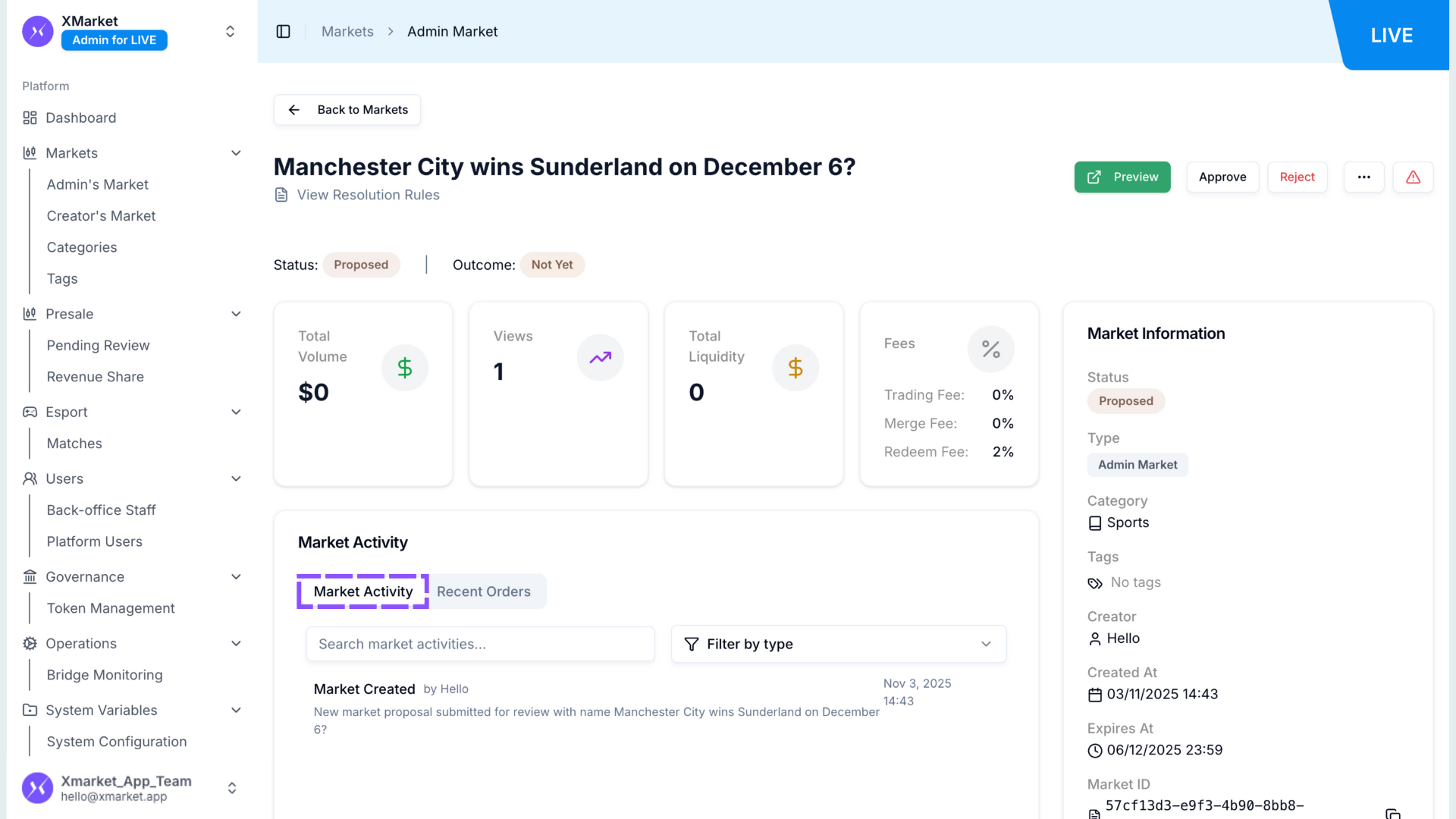
시장 활동 유형
- 최근 주문
최근 주문 테이블에는 다음 열이 포함됩니다:
| 열 | 설명 | 예시 값 |
|---|---|---|
| ID | 고유 주문 식별자 (클릭하여 세부 사항 보기) | "1e861", "e6def", "f09b5" |
| 사용자 | 주문을 넣은 사용자 주소 또는 식별자 (클릭 가능) | "e9291", "D2b81" |
| 결과 | 주문이 관련된 시장 결과 | "yes", "no" |
| 유형 | 주문 유형 분류 | "limit", "market", "split", "merge", "redeem" |
| 방향 | 주문 방향 | "buy", "sell" |
| 가격 | 주당 주문 가격 | "0", "10", "50", "90", "100" |
| 수량 | 주문 수량 | "1", "10", "10.98", "9.98" |
| 체결됨 | 실제 체결된 주식 수 | "0", "1", "9.98", "10.98" |
| 수수료 주식 | 주식으로 지불된 거래 수수료 | "0", "0.02" |
| 수수료 USD | USD로 지불된 거래 수수료 | "$0", "$0.002" |
| 체결 가격 | 주문이 체결된 평균 가격 | "0", "10", "40", "45", "50", "60" |
| 상태 | 현재 주문 상태 | "filled", "cancelled <user_cancel>" |
| 생성일 | 주문 생성 날짜 및 시간 | "03/11/2025 11:45:40" |
| 만료일 | 주문 만료 날짜 및 시간 | "04/11/2026 00:00:00" 또는 "-" |
| 생성자 | 주문 생성 주체 | "user", "admin" |
.png)
최근 주문 테이블
주요 참고 사항
- 결과 처리 작업은 시장 만료일이 지난 후에만 사용할 수 있습니다.
- 거래 일시 중지는 긴급 상황이나 문제 조사 시 유용합니다.
- 보관은 삭제 없이 오래되었거나 더 이상 관련 없는 시장을 제거하는 데 유용합니다.
- 수수료 설정은 플랫폼 구성에 따라 특정 시장에서 비활성화될 수 있습니다.
5. 시장 주문 보기
목적
특정 시장의 모든 주문 및 주문 체결을 모니터링하여 거래 활동을 추적하고 적절한 시장 기능을 보장합니다.
사용 시기
거래 활동을 검토하거나, 사용자 보고를 조사하거나, 주문 체결을 확인하거나, 시장 유동성을 모니터링해야 할 때 사용합니다.
단계
| 단계 | 작업 | 세부 사항 |
|---|---|---|
| 1 | 진행 중 또는 결과 처리 완료됨 시장 접근 | Live 또는 Resolved 탭으로 이동합니다. |
| 2 | 작업 메뉴 열기 | 시장의 버튼 (진행 중) 또는 View orders 버튼 (결과 처리 완료됨)을 클릭합니다. |
| 3 | 주문 보기 선택 | 작업 메뉴에서 View Orders를 클릭합니다. 모든 시장 주문을 표시하는 새 페이지가 열립니다. |
| 4 | 주문 탭 검토 | 세부 사항이 포함된 모든 주문을 봅니다: ID, User, Outcome, Type, Side, Price, Quantity, Filled, Fee Shares, Fee USD, Filled Price, Status, Created At, Expired At, Created By. |
| 5 | Order Fills로 전환 | Order Fills 탭을 클릭하여 완료된 주문 매칭 및 거래 이력을 봅니다. |
| 6 | 필터 사용 | Order Type, Status, Side 또는 Outcome 필터를 적용하여 특정 주문을 좁힙니다. |
| 7 | 주문 검색 | 검색 상자를 사용하여 사용자 주소 또는 주문 ID로 특정 주문을 찾습니다. |
| 8 | 사용자 잔액 찾기 | User Address 필드에 사용자 주소를 입력하고 Find Balance를 클릭하여 시장에서의 사용자 포지션을 확인합니다. |
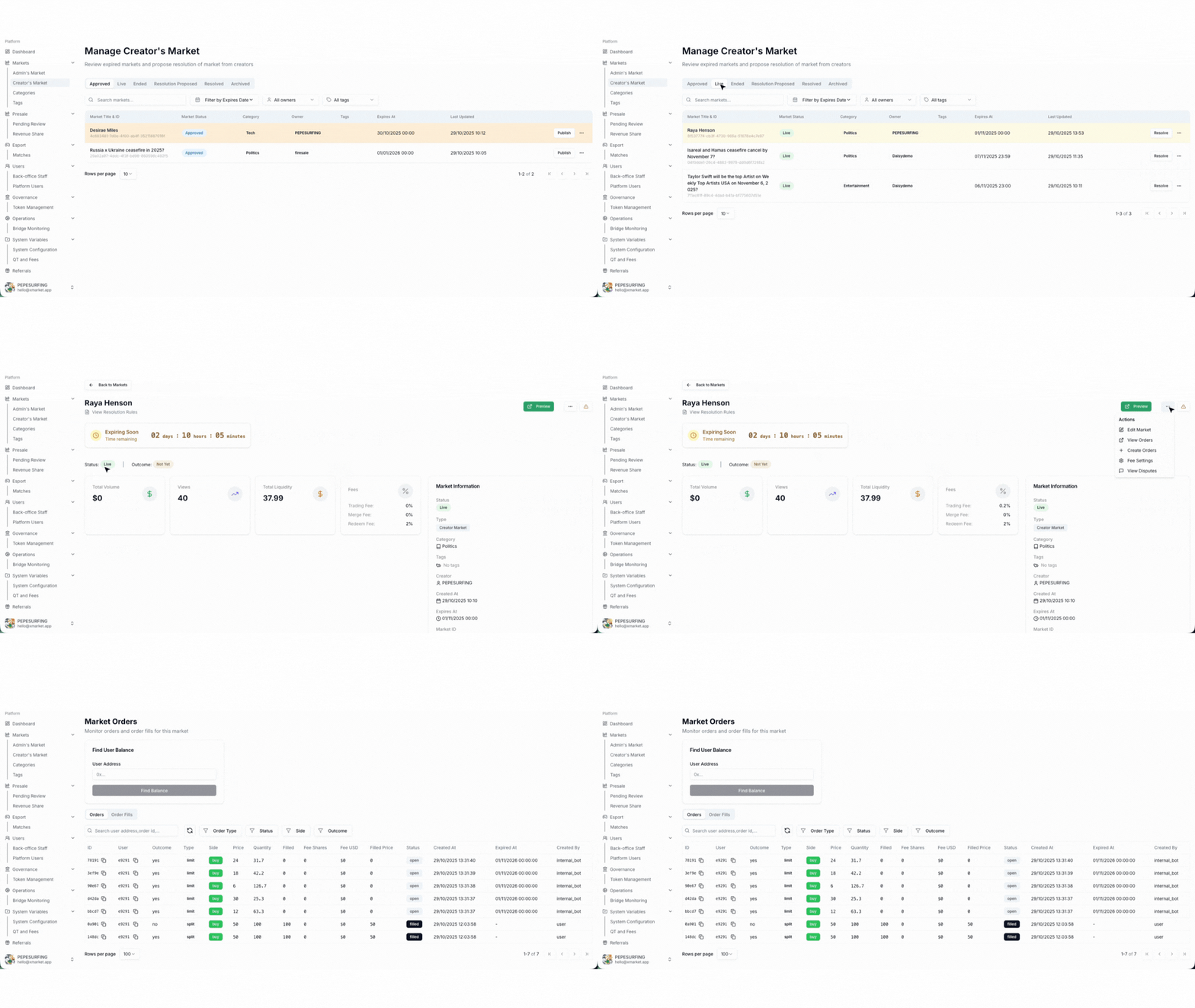
시장 주문 보기 단계
주문 테이블 열
| 열 | 설명 |
|---|---|
| ID | 고유 주문 식별자 (축약됨) 복사 버튼 포함 |
| 사용자 | 사용자 지갑 주소 (축약됨) 복사 버튼 포함 |
| 결과 | 예측 결과 (yes 또는 no) |
| 유형 | 주문 유형 (merge, split, limit) |
| 방향 | 매수 또는 매도 |
| 가격 | 센트 단위 주문 가격 |
| 수량 | 주식 수 |
| 체결됨 | 체결된 주식 수 |
| 수수료 주식 | 주식으로 표시된 거래 수수료 |
| 수수료 USD | USD로 표시된 거래 수수료 |
| 체결 가격 | 평균 체결 가격 |
| 상태 | 주문 상태 (filled, open, cancelled) |
| 생성일 | 주문 생성 타임스탬프 |
| 만료일 | 주문 만료 시간 |
| 생성자 | 출처 (user 또는 admin) |
주요 참고 사항
- 주문 유형: merge (YES 및 NO 토큰 결합), split (담보를 YES 및 NO로 분할), limit (표준 지정가 주문).
- 새로고침 버튼으로 최신 활동을 표시하기 위해 주문 데이터를 다시 로드합니다.
- 페이지네이션 컨트롤로 대규모 오더북을 효율적으로 볼 수 있습니다.
- ID 및 주소 옆의 복사 버튼으로 빠른 클립보드 접근이 가능합니다.
6. 시장 이의 제기 보기
목적
이의 제기 기간 후 최종 시장 결과를 검토하고 확인하여 트레이더가 수익을 상환할 수 있게 합니다.
사용 시기
결과 처리 제안됨 탭에 최종 관리자 확인이 필요한 제안된 결과가 있는 시장이 있을 때 사용합니다.
이의 제기 보기 단계
| 단계 | 작업 | 세부 사항 |
|---|---|---|
| 1 | 결과 처리 제안됨으로 이동 | Resolution Proposed 탭을 클릭하여 최종 확인을 기다리는 모든 시장을 봅니다. |
| 2 | 검토 및 확인할 시장 선택 | 시장 질문을 클릭하여 상세 보기를 엽니다. |
| 3 | 작업 메뉴 열기 | 시장의 버튼을 클릭합니다. |
| 4 | 이의 제기 보기 선택 | 메뉴에서 View Disputes를 클릭합니다. |
| 5 | 제안된 결과 검토 | Proposed Resolution 열을 확인하여 제안된 결과 (Yes 또는 No)를 봅니다. |
| 6 | 이의 제기 조사 | 이의 제기가 있으면 확인 전에 이의 제기 세부 사항과 사용자 주장을 검토합니다. |
.gif)
이의 제기 보기 단계
7. 시장 결과 처리
목적
시장 만료일 이후 최종 결과를 결정하고 확인하여 트레이더가 수익을 상환할 수 있게 합니다. 관리자는 두 가지 방법으로 시장을 결과 처리할 수 있습니다:
- 결과로 결과 처리: 바이너리 또는 단일 승자 결과용.
- 지급 비율로 결과 처리: 관리자가 결과에 특정 지급 비율을 할당하여 시장을 마감할 수 있는 기능.
사용 시기
- 결과로 결과 처리: 이벤트의 결과가 명확하고 단일한 경우 (예: "YES" 또는 "NO") 사용합니다.
- 지급 비율로 결과 처리: 결과가 부분적이거나, 분쟁 중이거나, 여러 결과가 가치를 공유하는 경우 (예: 70% Yes / 30% No) 사용합니다.
결과로 결과 처리 단계
| 단계 | 작업 | |
|---|---|---|
| 1 | 결과 처리 제안됨으로 이동 | Resolution Proposed 탭으로 이동합니다. |
| 2 | 결과로 결과 처리할 시장 선택 | 시장 질문을 클릭하여 상세 보기를 엽니다. |
| 3 | 작업 메뉴 열기 | 시장의 버튼을 클릭합니다. |
| 4 | 결과 처리 선택 | 메뉴에서 Resolve를 클릭합니다. |
| 5 | 결과 선택 | 최종 결과를 확인하기 위해 Yes 또는 No를 선택합니다. |
| 6 | 최종 결과 확인 | Confirm Resolution을 클릭합니다. |
.gif)
결과로 결과 처리 단계
결과
확인 후 시장 결과는 최종적이며 변경할 수 없습니다. 트레이더는 확인된 결과에 따라 포지션을 상환할 수 있습니다. 당첨 포지션은 지급을 받고, 손실 포지션은 가치가 없어집니다.
주요 참고 사항
- 최종 결과 처리는 되돌릴 수 없으며 쉽게 변경할 수 없습니다.
- 결과 처리를 확인하기 전에 모든 이의 제기를 신중하게 고려하세요.
- 활성 이의 제기가 있는 시장은 추가 검토 시간이 필요할 수 있습니다.
- 결과 처리가 완료되면 시장은 완료되고 더 이상의 관리자 조치가 필요하지 않습니다.
목적
부분 결과 처리 또는 비바이너리 결과가 필요한 시장에 사용자 지정 지급 비율을 적용합니다.
사용 시기
단순한 Yes/No 결과 처리가 부적절한 시장에 사용합니다. 예를 들어 무효 상태로 결과 처리되는 시장이나 비례 지급이 필요한 경우입니다.
지급 비율로 결과 처리 사용 단계
| 단계 | 작업 | 세부 사항 |
|---|---|---|
| 1 | 진행 중 시장 접근 | Live 또는 Ended 탭으로 이동합니다. |
| 2 | 지급 비율로 결과 처리할 시장 선택 | 시장 질문을 클릭하여 상세 보기를 엽니다. |
| 3 | 작업 메뉴 열기 | 시장의 버튼을 클릭합니다. |
| 4 | 지급 비율로 결과 처리 선택 | 메뉴에서 Resolve By Payout Ratio를 클릭합니다. |
| 5 | 지급 비율 설정 | Yes 및 No 결과에 대한 사용자 지정 지급 비율을 입력합니다 (합계 100% 필수). |
| 6 | 결과 처리 제출 | 지급 비율 결과 처리를 확인합니다. |
.gif)
지급 비율로 결과 처리 사용 단계
주요 참고 사항
- 지급 비율의 합은 정확히 100%여야 합니다.
- 이 기능은 비표준 결과 처리가 필요한 예외적인 경우를 위한 것입니다.
- 사용자 지정 비율을 사용할 때 트레이더에게 명확한 소통이 필수적입니다.
- 투명성과 향후 참조를 위해 근거를 철저히 문서화합니다.
9. 시장 수수료 관리
목적
특정 시장의 거래 수수료, 병합 수수료 및 상환 수수료 비율을 조정합니다.
사용 시기
시장에 플랫폼 기본값과 다른 사용자 지정 수수료 구조가 필요한 경우 사용합니다.
단계
| 단계 | 작업 | 세부 사항 |
|---|---|---|
| 1 | 진행 중 탭으로 이동 | Approved 또는 Live 탭을 클릭합니다. |
| 2 | 수수료 조정할 시장 선택 | 시장 질문을 클릭하여 상세 보기를 엽니다. |
| 3 | 작업 메뉴 열기 | 시장의 버튼을 클릭합니다. |
| 4 | 수수료 설정 선택 | 메뉴에서 Fee Settings를 클릭합니다. |
| 5 | 수수료 비율 조정 | 필요에 따라 거래 수수료, 병합 수수료 또는 상환 수수료를 수정합니다. |
| 6 | 변경 사항 저장 | 새 수수료 구조를 확인합니다. |
수수료 유형
| 수수료 유형 | 설명 |
|---|---|
| 테이커 수수료 | 각 거래 체결 시 부과되는 비율. |
| 병합 수수료 | YES 및 NO 포지션을 USDT로 다시 병합할 때 부과되는 수수료. |
| 상환 수수료 | 당첨 포지션을 USDT로 상환할 때 부과되는 수수료. |
주요 참고 사항
- 수수료 변경은 모든 향후 거래에 적용되지만 과거 거래에는 적용되지 않습니다.
- 낮은 수수료는 거래 활동을 촉진할 수 있습니다.
- 높은 수수료는 고위험 또는 실험적 시장에 적합할 수 있습니다.
- 수수료 변경은 저장 시 즉시 적용됩니다.
10. 관리자 주문 생성
목적
시장 유동성을 제공하기 위한 관리자 주문을 넣습니다.
사용 시기
시장에 초기 유동성이 필요하거나, 시장 조성 활동이 필요한 경우 사용합니다.
단계
| 단계 | 작업 | 세부 사항 |
|---|---|---|
| 1 | 진행 중 탭으로 이동 | Live 탭을 클릭합니다. |
| 2 | 작업 메뉴 열기 | 시장의 버튼을 클릭합니다. |
| 3 | 주문 생성 선택 | 메뉴에서 Create Orders를 클릭합니다. |
| 4 | 주문 매개변수 지정 | 주문 유형, 방향 (buy/sell), 결과 (yes/no), 가격 및 수량을 입력합니다. |
| 5 | 주문 제출 | 주문 생성을 확인합니다. |
| 6 | 주문 배치 확인 | 주문 목록을 확인하여 성공적으로 생성되었는지 확인합니다. |
주요 참고 사항
- 관리자 주문은 Created By 열에서 "admin"으로 표시됩니다.
- 관리자 주문은 사용자 주문과 동일한 매칭 규칙을 따릅니다.
- 시장 조작 우려를 피하기 위해 관리자 주문을 신중하게 사용합니다.
- 투명성을 위해 관리자 주문을 넣는 이유를 문서화합니다.
11. 시장 보관
목적
모든 이력 데이터와 기록을 보존하면서 활성 표시에서 시장을 제거합니다.
사용 시기
시장이 오래되었거나, 더 이상 관련이 없거나, 메인 시장 목록에서 숨겨야 할 때 사용합니다.
단계
| 단계 | 작업 | 세부 사항 |
|---|---|---|
| 1 | 모든 탭으로 이동 | 모든 상태에서 시장을 보관할 수 있습니다. |
| 2 | 작업 메뉴 열기 | 시장의 버튼을 클릭합니다. |
| 3 | 보관 선택 | 메뉴에서 Archive를 클릭합니다. |
| 4 | 작업 확인 | 프롬프트가 표시되면 보관 작업을 확인합니다. |
| 5 | 보관 상태 확인 | 시장이 활성 탭에서 제거되지만 모든 데이터가 보존됩니다. |
결과
시장이 메인 목록에서 숨겨지지만 이력 참조 및 보고를 위해 접근할 수 있습니다. 모든 거래 데이터, 주문 및 결과가 보존됩니다.
주요 참고 사항
- 보관된 시장은 거래 이력 및 결과를 포함한 모든 데이터를 유지합니다.
- 보관은 삭제와 다릅니다; 데이터가 보존됩니다.
- 깨끗한 활성 시장 목록을 유지하면서 기록을 보존하는 데 유용합니다.
- 필요한 경우 시장을 보관 해제할 수 있습니다 (구현에 따라 기능이 다를 수 있음).
12. 검색 및 필터
목적
검색 및 필터 기준을 사용하여 생성자 시장에서 특정 시장을 빠르게 찾습니다.
사용 시기
- 특정 시장 찾기: 원하는 것을 알고 있을 때 시장 제목 또는 UUID로 검색
- 생성자별 검토: 특정 생성자의 모든 시장을 검토하기 위해 소유자별 필터
- 주제 집중 검토: 특정 카테고리의 시장을 필터링하기 위해 태그 사용
- 시간에 민감한 검토: 곧 마감되는 시장을 찾기 위해 만료일별 필터
- 품질 감사: 유사한 시장 유형의 패턴을 식별하기 위해 필터 조합
사용 가능한 필터
| 필터 유형 | 설명 | 사용 방법 |
|---|---|---|
| 즉시 검색 | 시장 질문 및 ID에서 텍스트 검색 | 검색 상자에 키워드를 입력하여 질문 텍스트로 필터링합니다. 입력할 때 실시간으로 매칭됩니다. |
| 만료일 | 만료일 범위로 필터링 | Filter by Expires Date 버튼을 클릭하여 캘린더 피커를 열고 날짜 범위를 선택합니다. |
| 소유자 | 시장 생성자로 필터링 | All owners 드롭다운을 클릭하여 특정 생성자를 선택하여 소유자별로 시장을 필터링합니다. 현재 탭에 시장이 있는 모든 생성자가 표시됩니다. |
| 태그 | 시장 태그로 필터링 | All tags 드롭다운을 클릭하여 하나 이상의 태그(예: Sports, Bitcoin, Featured, Trending)를 선택하여 주제 또는 카테고리별로 시장을 필터링합니다. |
주요 참고 사항
- 검색 동작: 검색은 대소문자를 구분하지 않으며 시장 제목 어디에서나 부분 텍스트와 일치합니다.
- 날짜 필터링: 특정 기간 내에 만료되는 시장이나 날짜 범위 내의 시장을 찾는 데 도움이 됩니다.
- 소유자 필터링: 특정 생성자의 시장을 추적하거나 특정 사용자의 모든 제출물을 검토하는 데 유용합니다.
- 태그 필터링: 태그는 세밀한 필터링을 위해 카테고리와 특정 주제를 모두 반영합니다. 다중 태그 선택은 OR 로직을 사용합니다 (선택된 태그 중 하나라도 가진 시장을 표시).
- 필터 조합: 모든 필터가 함께 작동합니다; 더 많은 필터를 추가하면 결과가 점진적으로 좁아집니다.
- 필터 지속성: 같은 세션 내에서 탭 간 이동 시 필터가 활성 상태를 유지합니다.
- 실시간 검색: 즉시 검색은 입력할 때 결과가 자동으로 업데이트되어 즉각적인 피드백을 제공합니다.
13. 생성자 시장 모범 사례
품질 검토 기준
- 시장 질문이 명확하고, 구체적이며, Yes/No로 답변 가능한지 확인합니다
- 결과 처리 규칙에 객관적이고 검증 가능한 기준이 포함되어 있는지 확인합니다
- 결과 처리 출처가 신뢰할 수 있고 공개적으로 접근 가능한지 확인합니다
- 카테고리와 태그가 시장 주제를 정확하게 나타내는지 확인합니다
- 만료일이 결과 결정에 충분한 시간을 허용하는지 확인합니다
- 중복되거나 유사한 기존 시장이 있는지 검토합니다
결과 처리 무결성
- 모든 결과 처리는 정의된 기준에 엄격히 기반합니다
- 지정된 출처를 사용하여 결과를 독립적으로 검증합니다
- 결과 처리를 확인하기 전에 이의 제기를 철저히 검토합니다
- 결과 처리 출처와 근거를 문서화합니다
- 유사한 시장에 걸쳐 결과 처리 기준을 일관되게 적용합니다
- 결과 처리 결정을 커뮤니티에 명확하게 전달합니다
플랫폼 건강
- 라이브 시장의 거래 이상을 정기적으로 모니터링합니다
- 이의 제기를 신속하고 공정하게 처리합니다
- 보관을 사용하여 깨끗한 활성 시장 목록을 유지합니다
- 시장 상태에 대한 생성자 문의에 응답합니다
- 결과 처리 결정에 대해 투명한 소통을 유지합니다
관리자 주문 사용
- 모든 관리자 주문 활동을 문서화합니다
- 관리자 주문을 통한 불공정한 이점 생성을 피합니다
- 관리자 시장 참여에 대해 투명하게 유지합니다
제품 용어집
| 용어 | 설명 |
|---|---|
| 승인됨 | 생성자가 자체 승인하고 관리자 게시 준비가 된 시장 상태 |
| 보관 | 모든 데이터를 보존하면서 활성 표시에서 시장을 제거하는 작업 |
| 카테고리 | 시장의 기본 분류 (Crypto, E-Sports, Culture, Economy, Trump, Sports 등) |
| 마감일 | 시장이 만료되고 거래가 마감되는 날짜 및 시간 |
| 주문 생성 | 유동성을 위한 관리자 주문 넣기 기능 |
| 생성자 시장 | 관리자 검토가 필요한 플랫폼 사용자(생성자)가 제출한 예측 시장 |
| 이의 제기 | 제안된 시장 결과 처리에 대해 사용자가 제기한 이의 |
| 종료됨 | 거래 기간이 마감되고 시장이 결과 처리를 기다리고 있음을 나타내는 시장 상태 |
| 수수료 설정 | 거래 수수료, 병합 수수료 및 상환 수수료 비율을 조정하는 관리자 기능 |
| 최종 업데이트 | 시장의 가장 최근 수정 타임스탬프 |
| 진행 중 | 플랫폼에서 활발히 거래되고 있음을 나타내는 시장 상태 |
| Market ID | 각 시장에 대한 고유 UUID 식별자 |
| 시장 상태 | 현재 생명주기 단계 (승인됨, 진행 중, 종료됨, 결과 처리 보류 중, 결과 처리 완료됨) |
| 병합 수수료 | YES 및 NO 포지션을 담보로 다시 병합할 때 부과되는 수수료 |
| 주문 체결 | 완료된 주문 매칭 및 거래 체결 이력 |
| 주문 유형 | 주문 분류 (merge, split, limit) |
| 결과 | 예측 결과 (Yes 또는 No) |
| 소유자 | 시장 생성자의 플랫폼 사용자 이름 |
| 지급 비율 | 비바이너리 시장 결과 처리를 위한 사용자 지정 비율 분배 |
| 결과 처리 보류 중 | 결과가 제안되어 관리자 확인을 기다리고 있는 시장 상태 |
| 제안된 결과 처리 | 최종 확인을 기다리는 제안된 결과 (Yes 또는 No) |
| 게시 | 승인된 시장을 거래 가능한 라이브 상태로 만드는 관리자 작업 |
| 상환 수수료 | 당첨 포지션을 담보로 상환할 때 부과되는 수수료 |
| 결과 처리 | 최종 시장 결과를 제안하거나 확인하는 관리자 작업 |
| 지급 비율로 결과 처리 | 시장 결과에 사용자 지정 지급 비율을 적용하는 기능 |
| 결과 처리 완료됨 | 확인된 결과와 처리된 지급이 있는 최종 시장 상태 |
| 결과 처리 규칙 | 시장 결과가 언제 어떻게 결정될지 정의하는 기준 및 출처 |
| 방향 | 주문 방향 (buy 또는 sell) |
| 태그 | 시장 분류 및 검색을 위한 보조 레이블 |
| 거래 수수료 | 각 거래 체결 시 부과되는 비율 |
| 주문 보기 | 시장의 모든 주문 및 거래 활동을 표시하는 기능 |