바이너리 시장
한눈에 보기
이 섹션의 기능
예측 시장을 생성부터 최종 정산까지 관리합니다. 새 시장을 생성하고, 제출물을 검토하고, 품질이 적합한 시장을 승인하고, 라이브로 게시하고, 시장이 마감될 때 최종 결과를 결정합니다.
사용 대상
- 시장 관리자: 시장 생성 및 관리
- 시니어 관리자: 시장 승인 및 게시
- 품질 검토자: 승인 전 시장 품질 검토
주요 작업
- 새 시장 생성: 질문 및 규칙 설정
- 시장 승인: 제출물 검토 및 승인
- 시장 게시: 시장을 거래 가능한 상태로 라이브 전환
- 시장 결과 처리: 최종 결과 결정
시작하기 전에
다음 권한이 있는지 확인하세요:
admin_market: 모든 사전 판매 수익 분배 승인에 필요- 화이트리스트: "
Create & Approve Markets": 생성 및 게시에 필요 - 화이트리스트: "
Resolve & Approve Resolution": 결과 결정에 필요 - 화이트리스트: "
Approve Trading Fee Changes": 거래 수수료, 병합 수수료, 상환 수수료 비율 조정에 필요
개요
| 섹션 | 설명 |
|---|---|
| 개요 | 예측 시장을 생성, 편집 및 관리하는 완전한 관리 제어 기능을 갖춘 중앙 허브입니다. |
| 주요 탭 | 활성, 완료, 보관됨, 거부됨 |
조회 및 검색 기능
| 기능 | 필요 권한 | 필요 화이트리스트 |
|---|---|---|
| 시장 검토 | admin_market | 없음 |
| 시장 검색 및 필터링 | admin_market | 없음 |
| 시장 상세 정보 보기 | admin_market | 없음 |
생성 및 관리 기능
| 기능 | 필요 권한 | 필요 화이트리스트 |
|---|---|---|
| 시장 생성 | admin_market | Create & Approve Markets |
| 시장 편집 | admin_market | 없음 |
| 시장 승인 | admin_market | 없음 |
| 시장 게시 | admin_market | Create & Approve Markets |
| 시장 거부 | admin_market | 없음 |
| 시장 결과 처리 | admin_market | Resolve & Approve Resolution |
| 시장 보관 | admin_market | 없음 |
| 시장 가져오기 | admin_market | Create & Approve Markets |
| 시장 내보내기 | admin_market | 없음 |
1. 바이너리 시장 관리
개요
목적: 예측 시장의 전체 생명주기에 걸쳐 생성, 검토, 승인, 게시 및 관리합니다.
주요 기능:
- 시장 생성 기능
- 시장 검토 및 승인 기능
- 시장 게시 기능
- 시장 결과 처리 기능
- 시장 보관 기능
- 시장 필터링 및 검색 기능
- 시장 가져오기 및 내보내기 기능
2. 시장 탭 및 상태 개요
주요 탭
관리자 시장 페이지는 시장 생명주기의 각 단계를 나타내는 네 개의 기본 탭으로 구성되어 있습니다:
| 탭 | 설명 | 하위 탭 |
|---|---|---|
| 활성 | 현재 검토 또는 거래 중인 시장 | 제안됨, 승인됨, 진행 중 |
| 완료 | 종료되었거나 결과 처리된 시장 | 마감됨, 결과 처리 제안됨, 결과 처리 완료됨 |
| 보관됨 | 활성 표시에서 제거된 시장 | (하위 탭 없음) |
| 거부됨 | 품질 기준을 충족하지 못한 시장 | (하위 탭 없음) |
활성 탭 하위 탭
| 하위 탭 | 상태 | 설명 |
|---|---|---|
| 제안됨 | 제안됨 | 관리자 검토 및 승인을 기다리는 새로 제출된 시장. 모든 관리자 생성 시장의 초기 상태입니다. |
| 승인됨 | 승인됨 | 관리자가 승인했지만 아직 플랫폼에 게시되지 않은 시장. 게시 준비 완료. |
| 진행 중 | 진행 중 | 플랫폼에 게시되어 활발히 거래되고 있는 시장. 모든 사용자에게 표시됩니다. |
완료 탭 하위 탭
| 하위 탭 | 상태 | 설명 |
|---|---|---|
| 마감됨 | 종료됨 | 만료일이 지났지만 아직 결과가 제안되지 않은 시장. |
| 결과 처리 제안됨 | 결과 처리 제안됨 | 결과가 제안되어 최종 관리자 확인을 기다리고 있는 시장. 이의 제기 정보가 포함될 수 있습니다. |
| 결과 처리 완료됨 | 결과 처리 완료됨 | 최종 결과가 확인된 시장. 지급이 처리되었습니다. |
%20(1)%20(1).png)
시장 탭 및 상태 개요
시장 상태 생명주기
| 상태 | 탭 | 설명 | 사용 가능한 작업 |
|---|---|---|---|
| 제안됨 | 활성 > 제안됨 | 생성 후 초기 상태 | 승인, 거부, 항목 편집 |
| 승인됨 | 활성 > 승인됨 | 검토 및 승인됨, 게시 준비 완료 | 게시, 거부, 항목 편집 |
| 진행 중 | 활성 > 진행 중 | 게시되어 활발히 거래 중 | 제안, 항목 편집 |
| 종료됨 | 완료 > 마감됨 | 거래 기간 종료 | 제안, 항목 편집 |
| 결과 처리 제안됨 | 완료 > 결과 처리 제안됨 | 결과 제안됨, 확인 대기 중 | 결과 처리, 항목 편집 |
| 결과 처리 완료됨 | 완료 > 결과 처리 완료됨 | 최종 결과 확인됨 | 주문 보기 |
| 거부됨 | 거부됨 | 품질 기준 미충족 | 주문 보기 |
| 보관됨 | 보관됨 | 활성 표시에서 제거됨 | 항목 편집 |
주요 참고 사항
- 만료일 색상 표시: 생성자 시장을 효율적으로 관리할 수 있도록 각 시장 행은 만료 근접도에 따라 색상으로 구분됩니다:
- 목적: 색상 강조 표시는 승인된 시장 중 만료 전에 적시에 조치가 필요한 시장을 빠르게 식별할 수 있는 시각적 단서를 제공합니다.
| 색상 | 의미 | 조치 |
|---|---|---|
| 주황색 | 시장이 곧 만료됩니다 (24시간 이내). | 즉시 검토 및 게시를 우선시하세요. |
| 노란색 | 시장이 만료에 가까워지고 있습니다 (5일 이내). | 세부 사항을 검토하고 곧 게시 또는 결과 처리를 준비하세요. |
| 흰색 | 시장 만료가 아직 멀었습니다. | 즉각적인 조치가 필요하지 않습니다. 계속 모니터링하세요. |
3. 새 시장 생성
목적
특정 질문, 규칙, 카테고리 및 만료일을 가진 새로운 예측 시장을 생성합니다.
사용 시기
플랫폼에 새 시장을 추가해야 할 때 사용합니다.
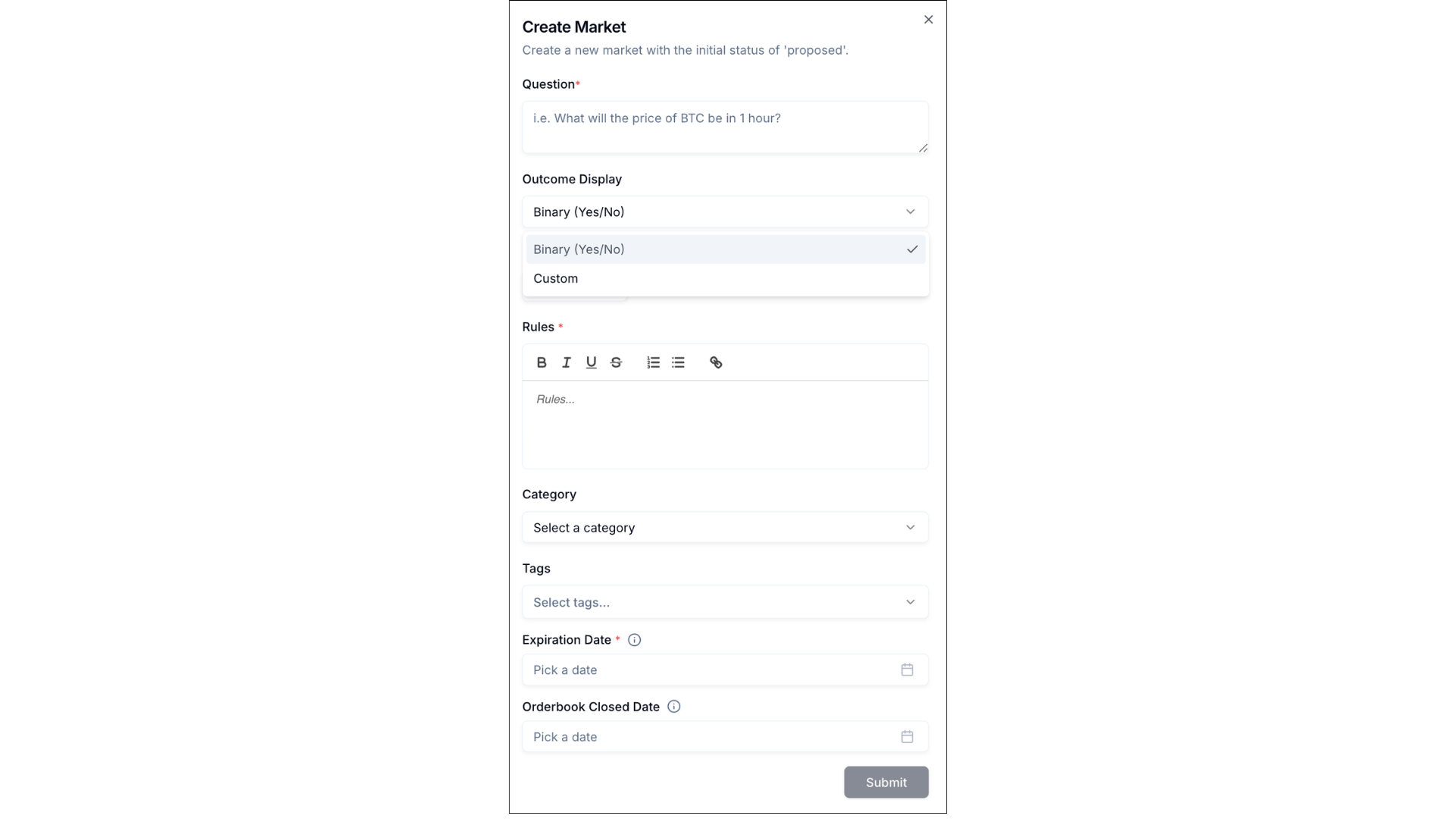
특정 질문, 규칙, 카테고리 및 만료일이 포함된 양식.
단계
| 단계 | 작업 | 세부 사항 |
|---|---|---|
| 1 | 관리자 시장 페이지 접근 | 메인 내비게이션에서 Markets > Admin's Market으로 이동합니다. |
| 2 | 시장 추가 버튼 클릭 | 페이지 오른쪽 상단의 Add Market 버튼을 클릭합니다. |
| 3 | 시장 질문 입력 | Question 필드에 명확하고 모호하지 않은 질문을 입력합니다. 표준 바이너리 시장의 경우 질문은 Yes 또는 No로 답변할 수 있어야 합니다. 사용자 지정 결과를 가진 시장의 경우, 질문 형식은 사용자 지정 결과 이름과 일치해야 합니다 (예: "Team A vs Team B?"). |
| 3.1 | 결과 표시 설정 | Outcome Display 드롭다운을 클릭하고 "Binary (Yes/No)" 또는 "Custom"을 선택합니다. "Binary (Yes/No)" 선택 시: 시장은 표준 Yes/No 결과를 사용합니다 (기본 옵션). "Custom" 선택 시: 두 개의 새 필드가 나타납니다: 1. Outcome 1 name: 첫 번째 결과의 레이블을 입력합니다 (예: "Team A", "LEE", "Option 1"). 2. Outcome 2 name: 두 번째 결과의 레이블을 입력합니다 (예: "Team B", "CRY", "Option 2"). 참고: 시장이 생성되면 Outcome Display 유형은 변경할 수 없습니다. |
| 4 | 커버 이미지 업로드 | Cover Image 아래의 Upload 버튼을 클릭하여 시장의 시각적 표현을 추가합니다. |
| 5 | 결과 처리 규칙 정의 | Rules 아래의 리치 텍스트 편집기를 사용하여 시장이 언제 어떻게 결과 처리될지 명확하게 정의합니다. 구체적인 기준과 결과 처리 출처를 포함합니다. 사용자 지정 결과 시장의 경우: 결과 처리 규칙을 작성할 때 사용자 지정 결과 이름을 명시적으로 참조합니다 (예: "이 시장은 'Yes'인 경우..."가 아니라 "이 시장은 'LEE'인 경우..."로 작성). |
| 6 | 카테고리 선택 | Category 드롭다운을 클릭하고 가장 적절한 카테고리를 선택합니다. |
| 7 | 태그 추가 | Tags 드롭다운을 클릭하고 시장 검색 가능성을 높이기 위해 관련 태그를 선택합니다. |
| 8 | 만료일 설정 | Expiration Date 버튼을 클릭하고 시장의 거래 마감 시점을 선택합니다. |
| 9 | 선택 사항: 오더북 마감일 설정 | Orderbook Closed Date 버튼을 클릭하고 오더북이 마감될 시점을 선택합니다. |
| 10 | 선택 사항: AI 제안 사용 | Suggest with AI를 클릭하여 시장 개선을 위한 AI 기반 추천을 받습니다. |
| 11 | 시장 제출 | Submit 버튼을 클릭하여 초기 상태 "제안됨"으로 시장을 생성합니다. |
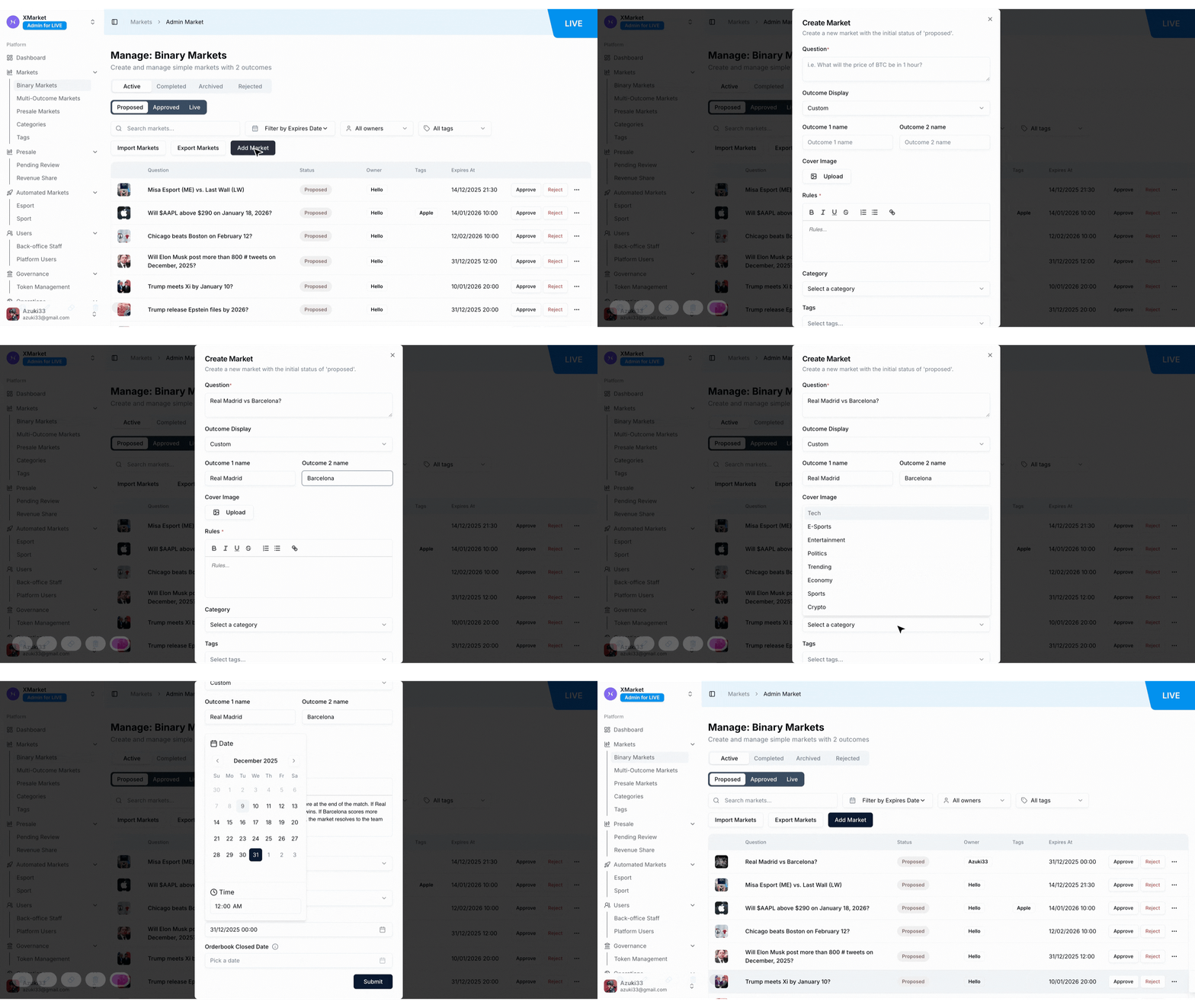
새 시장 생성 단계
결과
제출이 성공하면 시장은 활성 > 제안됨 탭에 "제안됨" 상태로 표시되며, 추가 검토 및 게시 준비가 됩니다.
주요 참고 사항
- 모든 필수 필드를 완료해야 Submit 버튼이 활성화됩니다.
- 관리자가 생성한 시장은 "진행 중" 상태가 아닌 "제안됨" 상태로 시작합니다.
- 리치 텍스트 편집기는 결과 처리 규칙 서식을 위해 굵게, 기울임꼴, 밑줄, 취소선, 순서가 있는 목록, 글머리 기호 목록 및 링크를 지원합니다.
- 명확한 결과 처리 기준은 이의 제기를 방지하고 공정한 시장 결과를 보장합니다.
- 만료일은 거래가 마감되는 시점을 결정하며, 시장이 결과 처리되는 시점이 아닙니다.
- 오더북 마감일은 새 주문 접수가 중단되는 시점을 결정합니다.
- 사용자 지정 결과 시장의 경우:
- "Outcome 1 name"과 "Outcome 2 name" 필드를 모두 입력해야 시장을 제출할 수 있습니다.
- 결과 이름에 명확하고 간결한 레이블(1-3단어 권장)을 사용합니다.
- 결과 이름이 구별되고 쉽게 혼동되지 않도록 합니다.
- 결과 처리 규칙은 "Yes/No"가 아닌 사용자 지정 결과 이름을 참조해야 합니다.
4. 시장 테이블 구조
열 설명
| 열 | 설명 |
|---|---|
| 커버 이미지 | 시장을 나타내는 썸네일 이미지 |
| 질문 | 시장 질문. 클릭하면 전체 시장 세부 정보를 볼 수 있습니다. |
| 상태 | 현재 상태 (제안됨, 승인됨, 진행 중, 종료됨, 결과 처리 제안됨, 결과 처리 완료됨, 거부됨, 보관됨) |
| 소유자 | 시장 생성자의 사용자 이름. 클릭하면 사용자 프로필을 볼 수 있습니다. |
| 결과 | 최종 결과 처리 결과. 표준 바이너리 시장의 경우 "Yes" 또는 "No"가 표시됩니다. 사용자 지정 결과를 가진 시장의 경우 사용자 지정 결과 이름이 표시됩니다 (예: "LEE", "CRY", "Team A", "Team B"). 완료 탭에서만 표시됩니다. |
| 태그 | 분류 및 검색을 위한 관련 태그 |
| 이의 제기 | 이의 제기 상태 (만료됨, 활성 등). 결과 처리 제안됨 탭에서만 표시됩니다. |
| 보관 여부 | 보관 상태 표시. 보관됨 탭에서만 표시됩니다. |
| 생성일 | 시장이 생성된 날짜 및 시간 |
| 작업 | 빠른 작업 버튼 (승인, 게시, 거부, 제안, 결과 처리, 항목 편집, 주문 보기) |
참고: Outcome Display 유형 (바이너리 vs 사용자 지정)은 메인 시장 테이블에 표시되지 않지만 시장 상세 보기 및 편집 양식에서 볼 수 있습니다.
5. 시장 검토 및 승인
목적
거래에 사용할 수 있도록 하기 전에 제출된 시장의 품질, 명확성 및 규정 준수 여부를 검토합니다.
사용 시기
활성 > 제안됨 탭에 검토가 필요한 시장이 있을 때 사용합니다.
시장 세부 정보 보기 단계
| 단계 | 작업 | 세부 사항 |
|---|---|---|
| 1 | 제안된 시장 접근 | 활성 > 제안됨 탭으로 이동합니다. |
| 2 | 시장 선택 | 시장 질문을 클릭하여 상세 보기를 엽니다. |
| 3 | 시장 정보 검토 | 다음 세부 사항을 확인합니다: |
| 3.1 | 질문 | 질문이 명확하고 모호하지 않은지 확인합니다. |
| 3.2 | 상태 | 현재 상태와 결과를 확인합니다. |
| 3.3 | 총 거래량 | USD로 표시된 거래량을 봅니다. |
| 3.4 | 조회수 | 시장을 본 사용자 수를 확인합니다. |
| 3.5 | 카테고리 | 적절한 분류인지 확인합니다. |
| 3.6 | 태그 | 할당된 태그의 관련성을 확인합니다. |
| 3.7 | 생성자 | 시장을 생성한 사람을 확인합니다. |
| 3.8 | 날짜 | 생성일 및 만료일 타임스탬프를 검토합니다. |
| 3.9 | ID | 기술 참조를 위해 Market ID, Question ID, Market Address, Question Market Address, Condition ID, Presale Address ID 및 Panda Score Match ID를 확인합니다. |
| 3.10 | 수수료 | 거래 수수료, 병합 수수료, 상환 수수료 비율을 확인합니다. |
| 3.11 | 결과 표시 | Outcome Display 유형 (바이너리 또는 사용자 지정)을 확인합니다. 사용자 지정인 경우, 결과 이름이 적절하고 명확한지 확인합니다. |
| 4 | 결과 처리 규칙 보기 | View Resolution Rules를 클릭하여 상세 결과 처리 기준을 검토합니다. 사용자 지정 결과 시장의 경우, 결과 처리 규칙이 "Yes/No"가 아닌 사용자 지정 결과 이름을 참조하는지 확인합니다. |
| 5 | 시장 미리보기 | Preview 버튼을 클릭하여 사용자에게 시장이 어떻게 표시되는지 확인합니다. |
단계
| 단계 | 작업 | 세부 사항 |
|---|---|---|
| 1 | 제안된 시장으로 이동 | 활성 > 제안됨 탭을 선택합니다. |
| 2 | 시장 품질 검토 | 시장이 플랫폼 품질 기준을 충족하는지 확인합니다. 사용자 지정 결과 시장의 경우 다음을 확인합니다: - 사용자 지정 결과 이름이 명확하고 구별되는지 - 결과 처리 규칙이 사용자 지정 결과 이름을 참조하는지 - 질문 형식이 사용자 지정 결과와 호환되는지 |
| 3 | 승인 버튼 클릭 | 시장 상세 페이지 또는 테이블 작업에서 Approve 버튼을 클릭합니다. |
| 4 | 승인 확인 | 프롬프트가 표시되면 승인 작업을 확인합니다. |
| 5 | 상태 변경 확인 | 시장이 활성 > 승인됨 탭으로 이동하고 "승인됨" 상태가 됩니다. |
.gif)
시장 승인 단계
결과
승인 후 시장은 게시 준비가 완료되어 승인됨 탭으로 이동합니다.
주요 참고 사항
- 명확하고 객관적인 결과 처리 기준이 있는 시장만 승인합니다.
- 질문이 Yes 또는 No로 (바이너리 시장의 경우) 또는 사용자 지정 결과 이름으로 (사용자 지정 결과 시장의 경우) 확실하게 답변될 수 있는지 확인합니다.
- 중복되거나 유사한 기존 시장이 있는지 확인합니다.
- 만료일이 질문에 적합한지 확인합니다.
- 사용자 지정 결과 시장의 경우:
- 사용자 지정 결과 이름이 적절하고 오해의 소지가 없는지 확인합니다.
- 결과 처리 규칙이 사용자 지정 결과 이름을 명시적으로 언급하는지 확인합니다.
- 질문 형식이 사용자 지정 결과와 잘 작동하는지 확인합니다.
6. 시장 게시
목적
승인된 시장을 라이브로 만들어 플랫폼에서 거래할 수 있게 합니다.
사용 시기
활성 > 승인됨 상태의 시장이 검토되어 모든 품질 기준을 충족한 후 사용합니다.
단계
| 단계 | 작업 | 세부 사항 |
|---|---|---|
| 1 | 승인된 시장으로 이동 | 활성 > 승인됨 탭을 선택합니다. |
| 2 | 게시할 시장 확인 | 라이브로 전환할 시장을 찾습니다. |
| 3 | 게시 버튼 클릭 | 해당 시장의 작업 열에서 Publish 버튼을 클릭합니다. |
| 4 | 게시 확인 | 확인 대화상자가 나타나면 작업을 확인합니다. |
| 5 | 상태 변경 확인 | 시장이 활성 > 진행 중 탭으로 이동하고 "진행 중" 상태가 됩니다. |
.gif)
시장 게시 단계
결과
시장이 모든 플랫폼 사용자에게 표시되고 거래가 즉시 시작됩니다.
주요 참고 사항
- 게시는 일반적인 작업으로 되돌릴 수 없습니다. 필요한 경우 시장을 수동으로 일시 중지하거나 보관해야 합니다.
- 라이브 시장을 편집하는 것은 더 복잡하므로 게시 전에 모든 시장 세부 사항이 올바른지 확인하세요.
- 게시된 시장은 모든 사용자에게 즉시 메인 시장 목록에 표시됩니다.
- 시장이 라이브되면 트레이더는 즉시 주문을 넣을 수 있습니다.
- 사용자 지정 결과 시장의 경우: 트레이더는 거래 시 "Yes/No" 대신 사용자 지정 결과 이름(예: "LEE", "CRY")을 보게 됩니다.
7. 시장 거부
목적
플랫폼 품질 기준을 충족하지 않거나 가이드라인을 위반하는 시장을 제거합니다.
사용 시기
시장의 결과 처리 기준이 불명확하거나, 주관적이거나, 중복되거나, 가이드라인을 위반하거나, 플랫폼에 부적합한 경우 사용합니다.
단계
| 단계 | 작업 | 세부 사항 |
|---|---|---|
| 1 | 시장 접근 | 모든 활성 탭(제안됨, 승인됨)에서 시장으로 이동합니다. |
| 2 | 시장 검토 | 품질 기준에 따라 시장을 거부해야 하는지 확인합니다. |
| 3 | 거부 버튼 클릭 | 시장 상세 보기 또는 테이블 작업에서 Reject 버튼을 클릭합니다. |
| 4 | 거부 확인 | 프롬프트가 표시되면 거부 작업을 확인합니다. |
| 5 | 이동 확인 | 시장이 거부됨 탭으로 이동합니다. |
결과
시장이 거부됨 탭으로 이동하고 일반 사용자에게 더 이상 표시되지 않으며 거래 대상에서 제외됩니다.
주요 참고 사항
- 거부는 고품질 시장만 트레이더에게 도달하도록 보장합니다.
- 거부된 시장은 문제가 수정되면 편집 및 재제출이 가능합니다.
- 이 작업은 플랫폼 무결성과 사용자 신뢰를 유지합니다.
8. 진행 중인 시장 관리
진행 중인 시장의 사용 가능한 작업
진행 중인 시장의 상세 페이지를 볼 때 두 가지 작업 메뉴에 접근할 수 있습니다:
- 작업 메뉴 (표준 작업): 첫 번째
 버튼을 클릭하여 접근합니다.
| 작업 | 목적 |
|---|---|
| 시장 편집 | 질문, 규칙, 카테고리, 태그 또는 만료일 등 시장 세부 사항을 수정합니다. 참고: 사용자 지정 결과가 있는 시장의 경우 Outcome Display 필드는 비활성화되어 변경할 수 없습니다. 결과 이름은 수정할 수 있지만, 새 이름을 참조하도록 결과 처리 규칙도 업데이트해야 합니다. |
| 주문 보기 | 시장 오더북의 모든 활성 주문을 봅니다. 새 탭에서 열립니다. |
| 주문 생성 | 유동성을 제공하거나 시장 기능을 테스트하기 위한 관리자 주문을 넣습니다. |
| 수수료 설정 | 이 특정 시장의 거래 수수료, 병합 수수료 및 상환 수수료 비율을 조정합니다. |
| 이의 제기 보기 | 사용자가 시장에 대해 제기한 이의 사항을 검토합니다. |
%20(3).png)
- 위험 구역 메뉴 (중요 작업):
 버튼을 클릭하여 접근합니다.
| 작업 | 가용성 | 목적 |
|---|---|---|
| 결과 처리 | 시장 만료까지 비활성화 | 최종 결과를 제안하거나 확인합니다. 표준 바이너리 시장의 경우 Yes 또는 No를 선택합니다. 사용자 지정 결과 시장의 경우 적절한 사용자 지정 결과 이름을 선택합니다. |
| 지급 비율로 결과 처리 | 시장 만료까지 비활성화 | 부분 결과 처리를 위한 사용자 지정 지급 비율을 설정합니다. 사용자 지정 결과 시장의 경우 당첨 결과를 나타내는 사용자 지정 결과 이름을 선택합니다. |
| 거래 일시 중지 | 항상 가능 | 시장의 모든 거래 활동을 일시적으로 중단합니다. |
| 보관 | 항상 가능 | 시장을 보관 상태로 이동하여 활성 표시에서 제거합니다. |
%20(2).png)
- 시장 활동
| 단계 | 세부 사항 |
|---|---|
| 1 | 시장 질문을 클릭하여 상세 보기를 엽니다. 시장 헤더 정보 아래의 탭 섹션을 찾습니다 |
| 2 | 모든 활동 목록이 있는 "Market Activity" 탭을 볼 수 있습니다 (일반적으로 기본 선택된 탭입니다) |
일반적으로 볼 수 있는 활동 유형:
| 활동 유형 | 설명 | 표시 시점 |
|---|---|---|
| 시장 생성됨 | 시장이 처음 생성됨 | 시장이 처음 생성될 때 |
| 시장 편집됨 | 시장 세부 사항이 수정됨 | 질문, 규칙, 카테고리, 태그 또는 이미지가 업데이트될 때 |
| 시장 승인됨 | 시장이 게시를 위해 승인됨 | 관리자가 제안된 시장을 승인할 때 |
| 시장 거부됨 | 시장이 거부됨 | 시장이 품질 검토에 실패할 때 |
| 시장 진행 중 | 시장이 거래를 위해 라이브됨 | 시장이 게시되어 활성화될 때 |
| 시장 거래 일시 중지됨 | 거래가 일시적으로 중단됨 | 관리자가 라이브 시장을 일시 중지할 때 |
| 시장 거래 재개됨 | 거래가 재개됨 | 관리자가 일시 중지된 시장을 재개할 때 |
| 시장 결과 제안됨 | 결과가 제안됨 | 관리자가 시장 결과 처리를 제안할 때 |
| 시장 결과 처리 완료 | 최종 결과로 시장이 결과 처리됨 | 확인된 결과로 시장이 마감될 때 |
| 시장 보관됨 | 시장이 보관됨 | 시장이 활성 표시에서 제거될 때 |
| 시장 보관 해제됨 | 시장이 보관 해제됨 | 보관된 시장이 복원될 때 |
- 최근 주문
최근 주문 테이블에는 다음 열이 포함됩니다:
| 열 | 설명 | 예시 값 |
|---|---|---|
| ID | 고유 주문 식별자 (클릭하여 세부 사항 보기) | "1e861", "e6def", "f09b5" |
| 사용자 | 주문을 넣은 사용자 주소 또는 식별자 (클릭 가능) | "e9291", "D2b81" |
| 결과 | 주문이 관련된 시장 결과 | "yes", "no" (바이너리 시장의 경우) 또는 사용자 지정 결과 이름 (예: "LEE", "CRY") (사용자 지정 결과 시장의 경우) |
| 유형 | 주문 유형 분류 | "limit", "market", "split", "merge", "redeem" |
| 방향 | 주문 방향 | "buy", "sell" |
| 가격 | 주당 주문 가격 | "0", "10", "50", "90", "100" |
| 수량 | 주문 수량 | "1", "10", "10.98", "9.98" |
| 체결됨 | 실제 체결된 주식 수 | "0", "1", "9.98", "10.98" |
| 수수료 주식 | 주식으로 지불된 거래 수수료 | "0", "0.02" |
| 수수료 USD | USD로 지불된 거래 수수료 | "$0", "$0.002" |
| 체결 가격 | 주문이 체결된 평균 가격 | "0", "10", "40", "45", "50", "60" |
| 상태 | 현재 주문 상태 | "filled", "cancelled <user_cancel>" |
| 생성일 | 주문 생성 날짜 및 시간 | "03/11/2025 11:45:40" |
| 만료일 | 주문 만료 날짜 및 시간 | "04/11/2026 00:00:00" 또는 "-" |
| 생성자 | 주문 생성 주체 | "user", "admin" |
주요 참고 사항
- 결과 처리 작업은 시장 만료일이 지난 후에만 사용할 수 있습니다.
- 거래 일시 중지는 긴급 상황이나 문제 조사 시 유용합니다.
- 보관은 삭제 없이 오래되었거나 더 이상 관련 없는 시장을 제거하는 데 유용합니다.
- 수수료 설정은 플랫폼 구성에 따라 특정 시장에서 비활성화될 수 있습니다.
- 사용자 지정 결과 시장의 경우:
- 편집 시 Outcome Display 필드는 비활성화되어 변경할 수 없습니다.
- 결과 이름을 수정할 수 있지만, 그에 따라 결과 처리 규칙도 업데이트해야 합니다.
- 라이브 시장에서 결과 이름을 변경하면 이미 주문을 넣은 트레이더에게 혼란을 줄 수 있습니다.
9. 시장 결과 처리
목적
시장 만료일 이후 최종 결과를 결정하고 확인하여 트레이더가 수익을 상환할 수 있게 합니다. 관리자는 두 가지 방법으로 시장을 결과 처리할 수 있습니다:
- 결과로 결과 처리: 바이너리 또는 단일 승자 결과용.
- 지급 비율로 결과 처리: 관리자가 결과에 특정 지급 비율을 할당하여 시장을 마감할 수 있는 기능.
사용 시기
- 결과로 결과 처리: 이벤트의 결과가 명확하고 단일한 경우 (예: 바이너리 시장의 "YES" 또는 "NO", 또는 사용자 지정 결과 시장의 특정 사용자 지정 결과 이름) 사용합니다.
- 지급 비율로 결과 처리: 결과가 부분적이거나, 분쟁 중이거나, 여러 결과가 가치를 공유하는 경우 (예: 70% Yes / 30% No, 또는 사용자 지정 결과의 경우 70% LEE / 30% CRY) 사용합니다.
결과 처리 제안 단계
| 단계 | 작업 | 세부 사항 |
|---|---|---|
| 1 | 마감된 시장으로 이동 | 완료 > 마감됨 탭으로 이동합니다. |
| 2 | 시장 선택 | 시장 질문 또는 Propose 버튼을 클릭합니다. |
| 3 | 결과 처리 기준 검토 | 시장의 결과 처리 규칙을 확인하고 결과를 검증합니다. 사용자 지정 결과 시장의 경우, 어떤 사용자 지정 결과 이름이 당첨 결과를 나타내는지 이해하고 있는지 확인합니다. |
| 4 | 결과 제안 | Propose 버튼을 클릭하여 결과를 제안합니다. 표준 바이너리 시장의 경우 "Yes" 또는 "No"를 선택합니다. 사용자 지정 결과 시장의 경우 적절한 사용자 지정 결과 이름(예: "LEE" 또는 "CRY")을 선택합니다. |
| 5 | 제안 확인 | 시장이 완료 > 결과 처리 제안됨 탭으로 이동합니다. |
결과로 결과 처리 단계
| 단계 | 작업 | 세부 사항 |
|---|---|---|
| 1 | 결과 처리 제안됨으로 이동 | 완료 > 결과 처리 제안됨 탭으로 이동합니다. |
| 2 | 제안된 결과 검토 | 제안된 결과가 올바른지 확인합니다. 사용자 지정 결과 시장의 경우, 올바른 사용자 지정 결과 이름과 일치하는지 확인합니다. |
| 3 | 이의 제기 상태 확인 | 이의 제기 열에 표시된 이의 사항을 검토합니다. |
| 4 | 결과 처리 버튼 클릭 | Resolve 버튼을 클릭하여 최종 결과를 확인합니다. |
| 5 | 최종 상태 확인 | 시장이 완료 > 결과 처리 완료됨 탭으로 이동합니다. |
결과
결과 처리 후 트레이더는 최종 결과에 따라 포지션을 상환할 수 있습니다. 당첨 포지션은 지급을 받고, 손실 포지션은 가치가 없어집니다.
주요 참고 사항
- 결과 처리는 시장의 결과 처리 규칙에 정의된 객관적인 기준에 기반해야 합니다.
- 결과 처리 제안됨 탭의 이의 제기 열은 트레이더가 우려 사항을 제기했는지 보여줍니다.
- 결과 처리를 확인하기 전에 이의 제기를 신중하게 고려하세요.
- 결과 처리가 완료되면 결과는 최종적이며 쉽게 변경할 수 없습니다.
- 이의 제기가 있는 시장은 이의 제기 해결 기한이 지났음을 나타내는 "만료됨" 상태를 표시할 수 있습니다.
- 사용자 지정 결과 시장의 경우:
- 결과 처리 시 "Yes/No" 대신 사용자 지정 결과 이름이 표시됩니다.
- 제안하거나 결과 처리할 때 올바른 사용자 지정 결과 이름을 선택해야 합니다.
- 결과 처리 규칙은 어떤 조건에서 어떤 사용자 지정 결과 이름이 당첨되는지 명확하게 정의해야 합니다.
- 트레이더는 포지션 및 주식 상환 시 사용자 지정 결과 이름을 보게 됩니다.
단계
| 단계 | 작업 |
|---|---|
| 1 | Markets → Admin's Market → Active → Live로 이동합니다. 정산이 필요한 시장을 클릭합니다. |
| 2 | 시장 세부 정보에서 버튼을 클릭합니다. |
| 3 | Resolve with Payout Ratio를 선택합니다. 당첨을 나타내는 결과를 선택합니다. 표준 바이너리 시장의 경우 "Yes" 또는 "No"를 선택합니다. 사용자 지정 결과 시장의 경우 사용자 지정 결과 이름(예: "LEE" 또는 "CRY")을 선택합니다. |
| 4 | 각 결과에 대한 비율을 입력합니다 (예: 당첨 = 70, 패배 = 30). 사용자 지정 결과 시장의 경우 각 사용자 지정 결과 이름에 대한 비율을 입력합니다. |
| 5 | 결과 처리 세부 사항을 확인하고 Submit Resolution을 클릭합니다. |
| 6 | 결과 처리가 시장 요약에 반영되었는지 확인합니다. |
%20(2).gif)
지급 비율로 결과 처리 단계
결과
시장이 결과 처리 완료됨 상태로 이동합니다. 사용자의 주식은 입력된 지급 비율에 따라 자동으로 상환됩니다. 정산 로그가 시스템 기록에 따라 업데이트됩니다.
.png)
시장이 결과 처리 완료됨 상태로 이동
주요 참고 사항
- 비율의 합은 제출 전 반드시 1.0 (100%)이어야 합니다.
- 확인되면 결과 처리는 되돌릴 수 없습니다.
- 사용자 지정 결과 시장의 경우: 비율은 "Yes/No"가 아닌 사용자 지정 결과 이름에 적용됩니다.
10. 시장 보관
목적
모든 이력 데이터와 기록을 보존하면서 활성 표시에서 시장을 제거합니다.
사용 시기
시장이 오래되었거나, 더 이상 관련이 없거나, 삭제 없이 메인 시장 목록에서 숨겨야 할 때 사용합니다.
단계
| 단계 | 작업 | 세부 사항 |
|---|---|---|
| 1 | 시장 접근 | 모든 탭에서 시장으로 이동합니다. |
| 2 | 위험 구역 메뉴 열기 | 시장 상세 페이지에서 버튼을 클릭합니다. |
| 3 | 보관 클릭 | 메뉴에서 Archive 옵션을 선택합니다. |
| 4 | 작업 확인 | 프롬프트가 표시되면 보관 작업을 확인합니다. |
| 5 | 보관 상태 확인 | 시장이 보관됨 탭으로 이동합니다. |
결과
시장이 보관됨 탭으로 이동하고 활성 시장 목록에 더 이상 나타나지 않지만 이력 참조를 위해 접근할 수 있습니다.
주요 참고 사항
- 보관된 시장은 거래 이력, 주문 및 결과를 포함한 모든 데이터를 유지합니다.
- 필요한 경우 시장을 보관 해제할 수 있습니다 (구현에 따라 기능이 다를 수 있음).
- 보관은 삭제와 다릅니다; 데이터가 보존됩니다.
- 이력 기록을 보존하면서 깨끗한 활성 시장 목록을 유지하는 데 유용합니다.
11. 필터링 및 검색
목적
다양한 필터 기준을 사용하여 특정 시장을 빠르게 찾습니다.
사용 가능한 필터
| 필터 유형 | 설명 | 사용 방법 |
|---|---|---|
| 검색 | 시장 질문 전체에서 텍스트 검색 | Search 상자에 키워드를 입력하여 텍스트 매칭합니다. |
| 만료일 | 만료일 범위로 필터링 | Filter by Expires Date 버튼을 클릭하고 만료일 기준을 지정할 날짜 범위를 선택합니다. |
| 소유자 | 시장 생성자로 필터링 | All owners 드롭다운을 클릭하고 특정 소유자를 선택하여 해당 시장만 봅니다. |
| 태그 | 할당된 태그로 필터링 | All tags 드롭다운을 클릭하고 하나 이상의 태그를 선택하여 결과를 좁힙니다. |
주요 참고 사항
- 필터는 조합하여 작동합니다; 여러 필터가 결과를 더 좁힙니다.
- 검색은 대소문자를 구분하지 않으며 부분 텍스트와 일치합니다.
- 날짜 필터링은 특정 기간에 만료되는 시장을 찾는 데 도움이 됩니다.
- 소유자 필터는 특정 생성자의 시장을 검토하는 데 유용합니다.
- 태그 필터는 특정 주제나 카테고리의 시장에 집중하는 데 도움이 됩니다.
12. 시장 가져오기
목적
시스템 템플릿에 따라 외부 소스에서 시장을 일괄 가져옵니다.
사용 시기
사전 정의된 템플릿에서 한 번에 여러 시장을 생성해야 할 때 사용합니다.
단계
| 단계 | 작업 | 세부 사항 |
|---|---|---|
| 1 | 관리자 시장 접근 | 관리자 시장 페이지로 이동합니다. |
| 2 | 시장 가져오기 클릭 | 오른쪽 상단의 Import Markets 버튼을 클릭합니다. |
| 3 | 가져오기 프로세스 따르기 | 제시된 가져오기 마법사 또는 파일 업로드 프로세스를 완료합니다. |
| 4 | 가져온 시장 검토 | 제안됨 탭에서 가져온 시장을 확인합니다. |
| 5 | 확인 및 게시 | 게시 전 각 가져온 시장을 검토합니다. |
결과
단일 가져오기 작업으로 여러 시장이 효율적으로 생성됩니다.
주요 참고 사항
- 가져오기 기능은 대량 시장 생성을 간소화합니다.
- 게시 전에 항상 가져온 시장의 정확성을 검토하세요.
- 가져온 시장은 일반적으로 검토를 위해 제안됨 상태로 시작합니다.
- 이 기능은 이벤트 기반 또는 예약된 시장 생성에 특히 유용합니다.
13. 시장을 CSV로 내보내기
목적
분석, 백업을 위한 시장 데이터를 내보냅니다.
사용 시기
시장 데이터를 분석하거나, 보고서를 작성하거나, 시장 정보를 백업해야 할 때 사용합니다.
단계
| 단계 | 작업 | 세부 사항 |
|---|---|---|
| 1 | 관리자 시장 접근 | 목록 위의 Export Markets 버튼을 클릭합니다. |
| 2 | 필터 적용 (선택 사항) | 상태 선택 드롭다운이 있는 Export Markets 모달이 나타납니다. 다음 옵션 중 하나를 선택합니다: All, Proposed, Approved, Live, Closed, Resolution Proposed, Resolved 또는 Rejected. |
| 3 | 시장 내보내기 클릭 | 오른쪽 상단의 Export Markets 버튼을 클릭합니다. |
| 4 | 내보내기 파일 다운로드 | 내보낸 파일을 원하는 위치에 저장합니다. |
결과
시장 데이터가 외부 사용을 위한 구조화된 형식으로 내보내집니다.
주요 참고 사항
- 내보낸 데이터에는 현재 탭 및 필터를 기반으로 표시되는 모든 열이 포함됩니다.
- 특정 데이터 세트를 만들려면 내보내기 전에 필터를 사용하세요.
- 내보내기는 보고 및 분석 목적에 유용합니다.
14. 관리자 시장 모범 사례
품질 기준
- 시장 질문이 명확하고, 구체적이며, 검증 가능한지 확인합니다
- 객관적인 기준을 포함한 포괄적인 결과 처리 규칙을 작성합니다
- 규칙에 신뢰할 수 있는 결과 처리 출처를 포함합니다
- 검색 가능성을 위해 적절한 카테고리와 태그를 사용합니다
- 결과를 결정하기에 충분한 시간을 허용하는 현실적인 만료일을 설정합니다
검토 프로세스
- 플랫폼 품질을 유지하기 위해 모든 제안된 시장을 신속하게 검토합니다
- 결과 처리 기준이 객관적이고 모호하지 않은지 확인합니다
- 중복되거나 유사한 기존 시장이 있는지 확인합니다
- 질문이 Yes 또는 No로 (바이너리 시장의 경우) 또는 사용자 지정 결과 이름으로 (사용자 지정 결과 시장의 경우) 답변될 수 있는지 확인합니다
- 만료일이 질문에 적합한지 확인합니다
결과 처리 무결성
- 모든 결과 처리는 정의된 기준에 엄격히 기반합니다
- 결과를 확인하기 전에 이의 제기를 철저히 검토합니다
- 결과를 확인할 때 결과 처리 출처를 문서화합니다
- 유사한 시장에 걸쳐 결과 처리 기준을 일관되게 적용합니다
- 사용자 지정 결과 시장의 경우: 결과 처리 결정에서 항상 "Yes/No"가 아닌 사용자 지정 결과 이름을 참조합니다
플랫폼 건강
- 오래되었거나 관련 없는 시장을 정기적으로 보관합니다
- 라이브 시장의 거래 이상을 모니터링합니다
- 이의 제기를 신속하고 공정하게 처리합니다
- 품질 기준을 유지하기 위해 거부를 활용합니다
사용자 지정 결과 이름 모범 사례
사용자 지정 결과 이름 사용 시기:
사용자 지정 결과를 사용하는 경우:
- 스포츠 매치업 및 일대일 대결
- 두 명의 후보가 있는 선거
- 비교 질문 (옵션 A vs 옵션 B)
- 엔티티 이름이 Yes/No보다 더 의미 있는 모든 시나리오
바이너리 (Yes/No)를 사용하는 경우:
- 간단한 참/거짓 질문
- 이벤트 발생 질문 ("X가 발생할까?")
- Yes/No가 명확하고 모호하지 않은 질문
- 사용자 지정 이름이 가치를 추가하지 않는 시장
이름 지정 가이드라인:
- 짧게 유지: 각 결과 이름에 최대 1-3단어 사용
- 명확하게: 이름은 즉시 이해할 수 있어야 합니다
- 구별되게: 두 이름이 명확히 다른지 확인합니다
- 일관되게: 유사한 시장에 동일한 이름 지정 패턴 사용
- 특수 문자 피하기: 문자, 숫자 및 기본 구두점만 사용
사용자 지정 결과의 결과 처리 규칙:
- 항상 사용자 지정 이름 참조: 사용자 지정 결과 시장의 결과 처리 규칙에서 절대 "Yes/No"를 사용하지 않습니다
- 명시적으로: 어떤 조건에서 어떤 사용자 지정 결과 이름이 당첨되는지 명확하게 설명합니다
- 예시 제공: 도움이 되는 경우 결과 처리 규칙에 예시를 포함합니다
- 질문 형식 일치: 결과 처리 규칙이 질문 형식과 일치하는지 확인합니다
예시
| 예시 | 시장 유형 | 질문 | 결과 표시 | 결과 1 | 결과 2 | 결과 처리 규칙 |
|---|---|---|---|---|---|---|
| 예시 1 | 표준 바이너리 시장 | Will Bitcoin reach $100,000 by end of 2025? | Binary (Yes / No) | Yes | No | 2025년 12월 31일 오후 11:59 UTC까지 비트코인이 $100,000 이상에 도달하면 Yes로 결과 처리됩니다. 그렇지 않으면 No로 결과 처리됩니다. |
| 예시 2 | 사용자 지정 결과 시장 - 스포츠 매치업 | LEE vs CRY? | Custom | LEE | CRY | LEE가 승리하면 LEE로 결과 처리됩니다. CRY가 승리하거나 정규 시간 후 무승부인 경우 CRY로 결과 처리됩니다. 연장전 및 승부차기 포함. |
제품 용어집
| 용어 | 설명 |
|---|---|
| 활성 시장 | 현재 제안, 승인 또는 거래 단계에 있는 시장. |
| 관리자 시장 | 플랫폼 관리자가 생성하고 관리하는 시장. |
| 승인됨 | 관리자가 승인했지만 아직 게시되지 않은 시장 상태. |
| 보관 | 데이터를 보존하면서 활성 표시에서 시장을 제거하는 작업. |
| 카테고리 | 시장의 기본 분류 (E-Sports, 트렌딩, 테크, 문화, 스포츠, 정치, 엔터테인먼트, 경제, 크립토). |
| 마감됨 | 만료가 지났지만 결과가 제안되지 않은 승인 및 진행 중인 시장의 상태. |
| 완료 시장 | 거래가 종료되어 결과 처리를 기다리거나, 결과 처리 과정 중이거나, 완전히 결과 처리된 시장. |
| Condition ID | 시장 조건에 대한 고유 블록체인 식별자. |
| 커버 이미지 | 시장을 나타내는 시각적 썸네일. |
| 생성자/소유자 | 시장을 원래 생성한 사용자. |
| 사용자 지정 결과 이름 | 기본 "Yes/No" 레이블을 대체하는 바이너리 시장의 두 결과에 대한 사용자 정의 레이블. 팀 이름, 후보 이름 또는 옵션 레이블과 같은 더 설명적인 레이블을 시장에서 사용할 수 있게 합니다. 한 번 설정하면 바이너리 (Yes/No) 형식으로 변경할 수 없습니다. |
| 이의 제기 | 시장 결과 처리 또는 규칙에 관해 사용자가 제기한 이의. |
| 종료됨 | 만료일이 지난 시장의 상태. |
| 만료일 | 시장의 거래가 마감되는 날짜 및 시간. |
| 추천 | 시장이 플랫폼에서 프로모션되거나 강조 표시됨을 나타내는 태그. |
| 시장 가져오기 | 외부 소스에서 여러 시장을 추가하기 위한 일괄 생성 기능. |
| 진행 중 | 플랫폼에서 활발히 거래되고 있는 시장의 상태. |
| Market Address | 시장의 스마트 컨트랙트에 대한 블록체인 주소. |
| Market ID | 시장에 대한 고유 내부 식별자. |
| 병합 수수료 | YES와 NO 포지션을 담보로 다시 병합할 때 부과되는 수수료. |
| 오더북 마감일 | 오더북이 새 주문을 접수하지 않는 날짜 및 시간. |
| 결과 | 최종 결과 처리 결과. 바이너리 시장의 경우 "Yes/No" (표준 바이너리 시장) 또는 사용자 지정 결과 이름 (사용자 지정 결과 시장, 예: "LEE", "CRY", "Team A", "Team B")이 될 수 있습니다. |
| Outcome Display | 시장이 표준 "Binary (Yes/No)" 결과를 사용할지 "Custom" 결과 이름을 사용할지 결정하는 시장 생성/편집 필드. 시장 생성 시 설정되며 이후 변경할 수 없습니다. |
| Panda Score Match ID | Panda Score 데이터와 연결된 e스포츠 시장의 통합 ID. |
| Presale Address ID | 사전 판매 기능이 있는 시장의 식별자. |
| 제안됨 | 승인을 기다리는 새로 생성된 시장의 초기 상태. |
| 게시 | 승인된 시장을 거래 가능한 라이브 상태로 만드는 작업. |
| 질문 | 시장이 거래하는 대상을 정의하는 예측 문구. |
| Question ID | 시장 질문에 대한 블록체인 식별자. |
| Question Market Address | 질문 시장 컨트랙트에 대한 블록체인 주소. |
| 상환 수수료 | 당첨 포지션을 담보로 상환할 때 부과되는 수수료. |
| 거부 | 품질 기준을 충족하지 않는 시장을 제거하는 작업. |
| 결과 처리 제안됨 | 결과가 제안되었지만 확인되지 않은 상태. |
| 결과 처리 규칙 | 시장 결과가 언제 어떻게 결정될지 정의하는 기준 및 출처. |
| 결과 처리 완료됨 | 확인된 결과와 처리된 지급이 있는 최종 상태. |
| 태그 | 시장 분류 및 검색을 위한 보조 레이블 (예: Bitcoin, Ethereum, featured, MrBeast). |
| 총 거래량 | 시장의 모든 거래의 누적 가치. |
| 거래 수수료 | 각 거래 체결 시 부과되는 비율. |
| 조회수 | 사용자가 시장을 본 횟수. |