Binary Markets
At a Glance
What This Section Does
Manage prediction markets from creation to final settlement. Create new markets, review submissions, approve quality markets, publish them live, and determine final outcomes when markets close.
Who Should Use This
- Market Managers: Create and oversee markets
- Senior Admins: Approve and publish markets
- Quality Reviewers: Review market quality before approval
Most Common Tasks
- Create a New Market: Set up questions and rules
- Approve a Market: Review and approve submissions
- Publish a Market: Make markets live for trading
- Resolve a Market: Determine final outcome
Before You Start
Make sure you have these permissions:
admin_market: Required for all apresale revenue share approval- Whitelist: "
Create & Approve Markets": Required to create and publish - Whitelist: "
Resolve & Approve Resolution": Required to determine outcomes. - Whitelist: "
Approve Trading Fee Changes": Required to adjust trading, merge, and redeem fee percentages.
Overview
| Section | Description |
|---|---|
| Overview | Central hub for creating, editing, and managing prediction markets with full administrative control. |
| Main Tabs | Active, Completed, Archived, Rejected |
View & Search Features
| Feature | Permission Required | Whitelist Required |
|---|---|---|
| Reviewing Markets | admin_market | None |
| Searching & Filtering Markets | admin_market | None |
| Viewing Market Details | admin_market | None |
Create & Manage Features
| Feature | Permission Required | Whitelist Required |
|---|---|---|
| Creating Markets | admin_market | Create & Approve Markets |
| Editing Markets | admin_market | None |
| Approving Markets | admin_market | None |
| Publishing Markets | admin_market | Create & Approve Markets |
| Rejecting Markets | admin_market | None |
| Resolving Markets | admin_market | Resolve & Approve Resolution |
| Archiving Markets | admin_market | None |
| Importing Markets | admin_market | Create & Approve Markets |
| Exporting Markets | admin_market | None |
1. Binary Markets Management
Overview
Purpose: Create, review, approve, publish, and manage prediction markets throughout their entire lifecycle.
Key Features:
- Market Creation Function
- Market Review & Approval Function
- Market Publishing Function
- Market Resolution Function
- Market Archiving Function
- Market Filtering & Search Function
- Market Import & Export Functions
2. Market Tabs & Status Overview
Main Tabs
The Admin Markets page is organized into four primary tabs, each representing different stages in a market's lifecycle:
| Tab | Description | Sub-Tabs |
|---|---|---|
| Active | Markets currently open for review or trading | Proposed, Approved, Live |
| Completed | Markets that have ended or been resolved | Closed, Resolution Proposed, Resolved |
| Archived | Markets removed from active display | (No sub-tabs) |
| Rejected | Markets that did not meet quality standards | (No sub-tabs) |
Active Tab Sub-Tabs
| Sub-Tab | Status | Description |
|---|---|---|
| Proposed | Proposed | Newly submitted markets awaiting admin review and approval. Initial status for all admin-created markets. |
| Approved | Approved | Markets approved by admin but not yet published to the platform. Ready for publishing. |
| Live | Live | Markets published and actively trading on the platform. Visible to all users. |
Completed Tab Sub-Tabs
| Sub-Tab | Status | Description |
|---|---|---|
| Closed | Ended | Markets that have passed their expiration date but do not have a proposed outcome yet. |
| Resolution Proposed | Resolution Proposed | Markets with a proposed outcome awaiting final admin confirmation. May include dispute information. |
| Resolved | Resolved | Markets with confirmed final outcomes. Payouts have been processed. |
%20(1)%20(1).png)
Market Tabs & Status Overview
Market Status Lifecycle
| Status | Tab | Description | Available Actions |
|---|---|---|---|
| Proposed | Active > Proposed | Initial state after creation | Approve, Reject, Edit item |
| Approved | Active > Approved | Reviewed and approved, ready for publishing | Publish, Reject, Edit item |
| Live | Active > Live | Published and actively trading | Propose, Edit item |
| Ended | Completed > Closed | Trading period has ended | Propose, Edit item |
| Resolution Proposed | Completed > Resolution Proposed | Outcome proposed, awaiting confirmation | Resolve, Edit item |
| Resolved | Completed > Resolved | Final outcome confirmed | View Orders |
| Rejected | Rejected | Did not meet quality standards | View Orders |
| Archived | Archived | Removed from active display | Edit item |
Key Notes
- Color for Expiration Dates: To help reviewers manage creator markets efficiently, each market row is color-coded based on its expiration proximity:
- Purpose: Color highlighting provides a quick visual cue to identify which approved markets need timely attention before expiration.
| Color | Meaning | Action |
|---|---|---|
| Orange | Market is expiring very soon (within 24 hours). | Prioritize for immediate review and publishing. |
| Yellow | Market is approaching expiration (within 5 days). | Review details and prepare to publish or resolve soon. |
| White | Market expiration is still distant. | No immediate action required. Continue monitoring. |
3. Creating a New Market
Purpose
Create new prediction markets with specific questions, rules, categories, and expiration dates.
When to Use
Use when you need to add a new market to the platform.
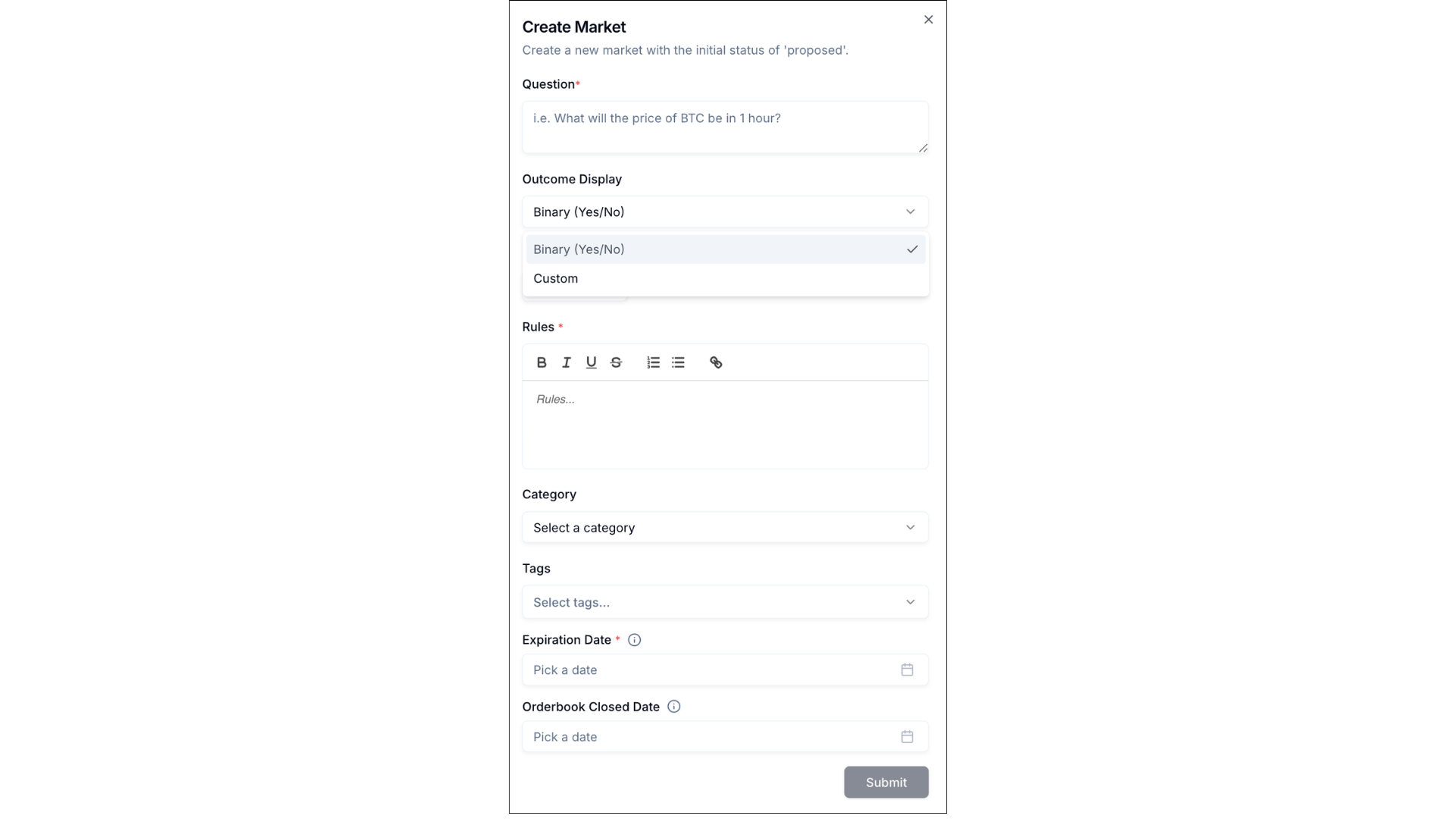
Form with specific questions, rules, categories, and expiration dates.
Steps
| Step | Action | Details |
|---|---|---|
| 1 | Access Admin Market Page | Navigate to Markets > Admin's Market from the main navigation. |
| 2 | Click Add Market Button | Click the Add Market button in the top right corner of the page. |
| 3 | Enter Market Question | In the Question field, enter a clear, unambiguous question. For standard binary markets, the question should be answerable with Yes or No. For markets with custom outcomes, the question format should match the custom outcome names (e.g., "Team A vs Team B?"). |
| 3.1 | Set Outcome Display | Click the Outcome Display dropdown and select either "Binary (Yes/No)" or "Custom". If selecting "Binary (Yes/No)": The market will use standard Yes/No outcomes (default option). If selecting "Custom": Two new fields will appear: 1. Outcome 1 name: Enter the label for the first outcome (e.g., "Team A", "LEE", "Option 1"). 2. Outcome 2 name: Enter the label for the second outcome (e.g., "Team B", "CRY", "Option 2"). Note: Once a market is created, the Outcome Display type cannot be changed. |
| 4 | Upload Cover Image | Click the Upload button under Cover Image to add a visual representation for the market. |
| 5 | Define Resolution Rules | Use the rich text editor under Rules to clearly define how and when the market will be resolved. Include specific criteria and resolution sources. For Custom Outcome Markets: When writing resolution rules, explicitly reference the custom outcome names (e.g., "This market resolves to 'LEE' if..." instead of "This market resolves to 'Yes' if..."). |
| 6 | Select Category | Click the Category dropdown and select the most appropriate category. |
| 7 | Add Tags | Click the Tags dropdown and select relevant tags to improve market discoverability. |
| 8 | Set Expiration Date | Click the Expiration Date button and select when the market will close for trading. |
| 9 | Optional: Set Orderbook Closed Date | Click the Orderbook Closed Date button and select when the orderbook will close. |
| 10 | Optional: Use AI Suggestions | Click Suggest with AI to get AI-powered recommendations for improving your market. |
| 11 | Submit Market | Click the Submit button to create the market with initial status of "Proposed". |
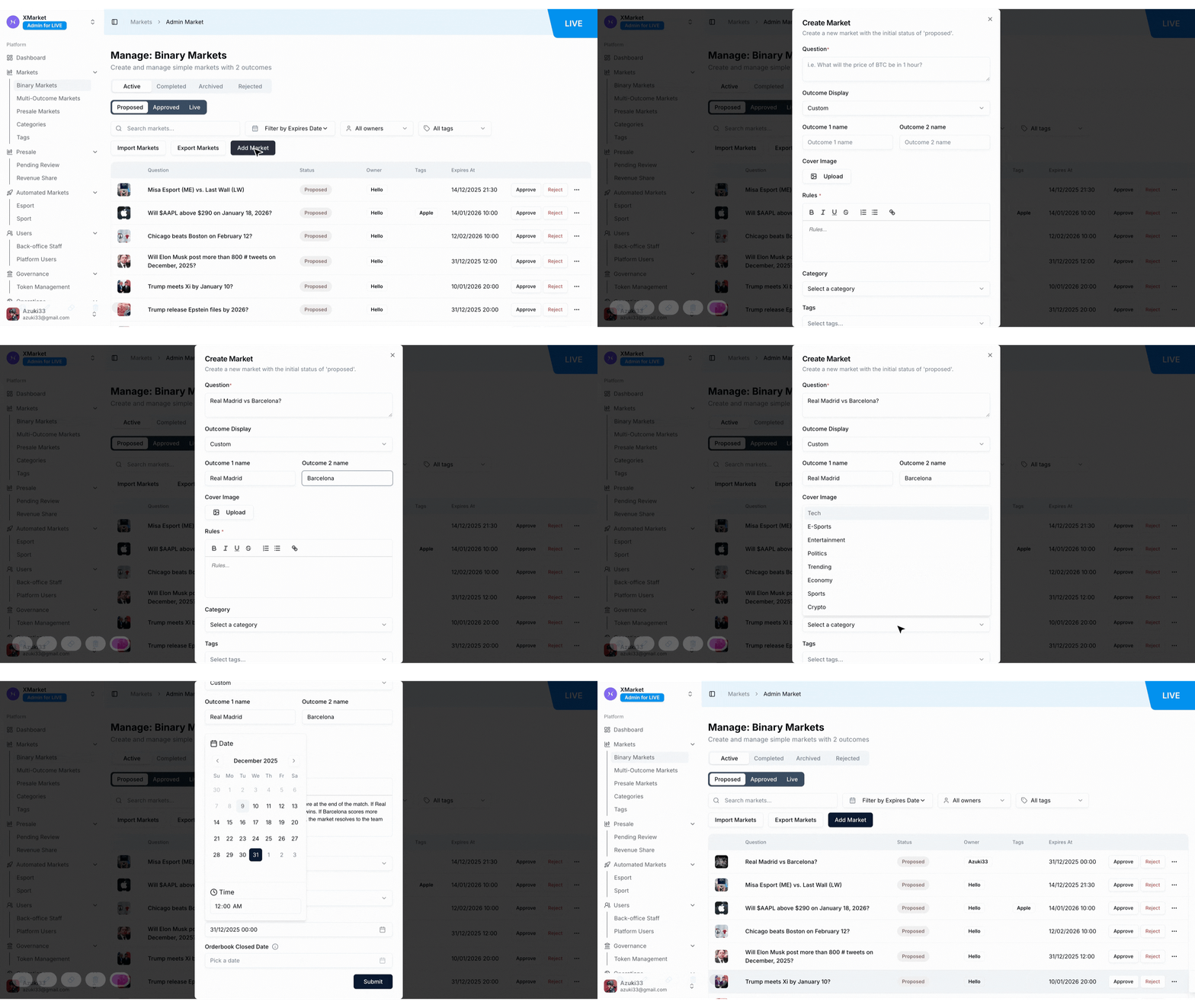
Steps of Creating a New Market
Outcome
After successful submission, the market appears in the Active > Proposed tab with status "Proposed", ready for further review and publishing.
Key Notes
- All required fields must be completed before the Submit button becomes active.
- Markets created by admins start with "Proposed" status, not "Live" status.
- The rich text editor supports bold, italic, underline, strikethrough, ordered lists, bullet lists, and links for formatting resolution rules.
- Clear resolution criteria prevent disputes and ensure fair market outcomes.
- The expiration date determines when trading closes, not when the market resolves.
- The orderbook closed date determines when new orders stop being accepted.
- For Custom Outcome Markets:
- Both "Outcome 1 name" and "Outcome 2 name" fields must be filled in before the market can be submitted.
- Use clear, concise labels (preferably 1-3 words) for outcome names.
- Ensure outcome names are distinct and not easily confused.
- Resolution rules must reference the custom outcome names, not "Yes/No".
4. Market Table Structure
Column Descriptions
| Column | Description |
|---|---|
| Cover Image | Thumbnail image representing the market |
| Question | The market question. Click to view full market details. |
| Status | Current status (Proposed, Approved, Live, Ended, Resolution Proposed, Resolved, Rejected, Archived) |
| Owner | Username of the market creator. Click to view user profile. |
| Outcome | Final resolution result. For standard binary markets, this shows "Yes" or "No". For markets with custom outcomes, this shows the custom outcome names (e.g., "LEE", "CRY", "Team A", "Team B"). Only visible in Completed tabs. |
| Tags | Associated tags for categorization and discovery |
| Dispute | Dispute status (Expired, Active, etc.). Only visible in Resolution Proposed tab. |
| Is Archived | Archive status indicator. Only visible in Archived tab. |
| Created At | Date and time when the market was created |
| Actions | Quick action buttons (Approve, Publish, Reject, Propose, Resolve, Edit item, View Orders) |
Note: The Outcome Display type (Binary vs Custom) is not shown in the main market table but is visible in the market detail view and edit form.
5. Reviewing & Approving Markets
Purpose
Review submitted markets for quality, clarity, and compliance before making them available for trading.
When to Use
Use when markets appear in the Active > Proposed tab requiring review.
Steps to View Market Details
| Step | Action | Details |
|---|---|---|
| 1 | Access Proposed Markets | Navigate to Active > Proposed tab. |
| 2 | Select Market | Click on the market question to open the detailed view. |
| 3 | Review Market Information | Examine the following details: |
| 3.1 | Question | Verify the question is clear and unambiguous. |
| 3.2 | Status | Check current status and outcome. |
| 3.3 | Total Volume | View trading volume in USD. |
| 3.4 | Views | See how many users have viewed the market. |
| 3.5 | Category | Verify appropriate categorization. |
| 3.6 | Tags | Check relevance of assigned tags. |
| 3.7 | Creator | Identify who created the market. |
| 3.8 | Dates | Review Created At and Expires At timestamps. |
| 3.9 | IDs | View Market ID, Question ID, Market Address, Question Market Address, Condition ID, Presale Address ID, and Panda Score Match ID for technical reference. |
| 3.10 | Fees | View Trading, Merge, Redeem Fee percentages. |
| 3.11 | Outcome Display | Check the Outcome Display type (Binary or Custom). If Custom, verify the outcome names are appropriate and clear. |
| 4 | View Resolution Rules | Click View Resolution Rules to review the detailed resolution criteria. For custom outcome markets, verify that resolution rules reference the custom outcome names, not "Yes/No". |
| 5 | Preview Market | Click the Preview button to see how the market appears to users. |
Steps
| Step | Action | Details |
|---|---|---|
| 1 | Navigate to Proposed Markets | Select the Active > Proposed tab. |
| 2 | Review Market Quality | Verify the market meets platform quality standards. For custom outcome markets, ensure: - Custom outcome names are clear and distinct - Resolution rules reference the custom outcome names - Question format is compatible with custom outcomes |
| 3 | Click Approve Button | Click the Approve button on the market detail page or in the table Actions. |
| 4 | Confirm Approval | Confirm the approval action when prompted. |
| 5 | Verify Status Change | The market moves to Active > Approved tab with status "Approved". |
.gif)
Steps to Approve a Market
Outcome
After approval, the market is ready for publishing and moves to the Approved tab.
Key Notes
- Only approve markets with clear, objective resolution criteria.
- Verify the question can be answered definitively with Yes or No (for binary markets) or with the custom outcome names (for custom outcome markets).
- Check for duplicate or similar existing markets.
- Ensure the expiration date is appropriate for the question.
- For Custom Outcome Markets:
- Verify custom outcome names are appropriate and not misleading.
- Ensure resolution rules explicitly mention the custom outcome names.
- Confirm the question format works well with custom outcomes.
6. Publishing Markets
Purpose
Make approved markets live and available for trading on the platform.
When to Use
Use after a market in Active > Approved status has been reviewed and meets all quality standards.
Steps
| Step | Action | Details |
|---|---|---|
| 1 | Navigate to Approved Markets | Select the Active > Approved tab. |
| 2 | Identify Market to Publish | Locate the market you want to make live. |
| 3 | Click Publish Button | Click the Publish button in the Actions column for that market. |
| 4 | Confirm Publication | Confirm the action in any confirmation dialog that appears. |
| 5 | Verify Status Change | The market moves to Active > Live tab with status "Live". |
.gif)
Steps of Publishing a Market
Outcome
The market becomes visible to all platform users and trading begins immediately.
Key Notes
- Publishing is irreversible through normal actions. Markets must be manually paused or archived if needed.
- Ensure all market details are correct before publishing, as editing live markets is more complex.
- Published markets immediately appear in the main markets list for all users.
- Traders can begin placing orders as soon as the market is live.
- For Custom Outcome Markets: Traders will see custom outcome names (e.g., "LEE", "CRY") instead of "Yes/No" when trading.
7. Rejecting Markets
Purpose
Remove markets that do not meet platform quality standards or violate guidelines.
When to Use
Use when a market has unclear resolution criteria, is subjective, duplicate, violates guidelines, or is otherwise unsuitable for the platform.
Steps
| Step | Action | Details |
|---|---|---|
| 1 | Access Market | Navigate to the market in any Active tab (Proposed, Approved). |
| 2 | Review Market | Verify that the market should be rejected based on quality standards. |
| 3 | Click Reject Button | Click the Reject button in the market detail view or table Actions. |
| 4 | Confirm Rejection | Confirm the rejection action when prompted. |
| 5 | Verify Movement | The market moves to the Rejected tab. |
Outcome
The market is moved to the Rejected tab and is no longer visible to regular users or eligible for trading.
Key Notes
- Rejection ensures only high-quality markets reach traders.
- Rejected markets can still be edited and resubmitted if issues are corrected.
- This action maintains platform integrity and user trust.
8. Managing Live Markets
Available Actions on Live Markets
When viewing a live market's detail page, you have access to two action menus:
- Actions Menu (Standard Operations): Access by clicking the first
 button.
| Action | Purpose |
|---|---|
| Edit Market | Modify market details such as question, rules, category, tags, or expiration date. Note: For markets with custom outcomes, the Outcome Display field will be disabled and cannot be changed. You can modify the outcome names, but ensure resolution rules are updated to reference the new names. |
| View Orders | See all active orders in the market orderbook. Opens in a new tab. |
| Create Orders | Place admin orders to provide liquidity or test market functionality. |
| Fee Settings | Adjust trading, merge, and redeem fee percentages for this specific market. |
| View Disputes | Review any disputes raised by users regarding the market. |
%20(3).png)
- Danger Zone Menu (Critical Operations): Access by clicking the
 button.
| Action | Availability | Purpose |
|---|---|---|
| Resolve | Disabled until market expires | Propose or confirm final outcome. For standard binary markets, select Yes or No. For custom outcome markets, select the appropriate custom outcome name. |
| Resolve with Payout Ratio | Disabled until market expires | Set custom payout ratios for partial resolutions. For custom outcome markets, choose the custom outcome name representing the winning outcome. |
| Pause Trading | Always available | Temporarily halt all trading activity on the market. |
| Archive | Always available | Move market to archived status, removing it from active display. |
%20(2).png)
- Market Activity
| Step | Details |
|---|---|
| 1 | Click on the market question to open the detailed view. Locate the tab section below the market header information |
| 2 | You will see a list of all activities "Market Activity" tab (this is typically the default selected tab) |
Common Activity Types You May See:
| Activity Types | Description | When It Appears |
|---|---|---|
| Market Created | Market was initially created | When market is first created |
| Market Edited | Market details were modified | When question, rules, category, tags, or image are updated |
| Market Approved | Market was approved for publishing | When admin approves a proposed market |
| Market Rejected | Market was rejected | When market fails quality review |
| Market Live | Market went live for trading | When market is published and becomes active |
| Market Paused Trading | Trading was temporarily halted | When admin pauses a live market |
| Market Unpaused Trading | Trading was resumed | When admin resumes a paused market |
| Market Proposed Outcome | Outcome was proposed | When admin proposes market resolution |
| Market Resolved | Market was resolved with final outcome | When market is closed with confirmed outcome |
| Market Archived | Market was archived | When market is removed from active display |
| Market Unarchived | Market was unarchived | When archived market is restored |
- Recent Orders
The Recent Orders table contains the following columns:
| Column | Description | Example Values |
|---|---|---|
| ID | Unique order identifier (clickable to view details) | "1e861", "e6def", "f09b5" |
| User | User address or identifier who placed the order (clickable) | "e9291", "D2b81" |
| Outcome | Market outcome the order relates to | "yes", "no" (for binary markets) or custom outcome names (e.g., "LEE", "CRY") for custom outcome markets |
| Type | Order type classification | "limit", "market", "split", "merge", "redeem" |
| Side | Order direction | "buy", "sell" |
| Price | Order price per share | "0", "10", "50", "90", "100" |
| Quantity | Number of shares ordered | "1", "10", "10.98", "9.98" |
| Filled | Number of shares actually filled | "0", "1", "9.98", "10.98" |
| Fee Shares | Trading fee paid in shares | "0", "0.02" |
| Fee USD | Trading fee paid in USD | "$0", "$0.002" |
| Filled Price | Average price at which order was filled | "0", "10", "40", "45", "50", "60" |
| Status | Current order status | "filled", "cancelled <user_cancel>" |
| Created At | Date and time when order was created | "03/11/2025 11:45:40" |
| Expired At | Date and time when order expires | "04/11/2026 00:00:00" or "-" |
| Created By | Who created the order | "user", "admin" |
Key Notes
- Resolve actions become available only after the market expiration date passes.
- Pausing trading is useful for emergency situations or when investigating issues.
- Archiving is useful for removing outdated or no longer relevant markets without deletion.
- Fee Settings may be disabled for certain markets based on platform configuration.
- For Custom Outcome Markets:
- When editing, the Outcome Display field is disabled and cannot be changed.
- You can modify outcome names, but ensure resolution rules are updated accordingly.
- Changing outcome names on a live market may confuse traders who have already placed orders.
9. Resolving Markets
Purpose
Determine and confirm the final outcome of a market after its expiration date, enabling traders to redeem their winnings. The Admin can resolve markets using two methods:
- Resolve with Outcome: for binary or single-winner results.
- Resolve with Payout Ratio: function allows admins to close a market by assigning specific payout ratios to outcomes.
When to Use
- Resolve with Outcome: Use when the event has a clear, single result (e.g., "YES" or "NO" for binary markets, or a specific custom outcome name for custom outcome markets).
- Resolve with Payout Ratio: Use when results are partial, disputed, or multiple outcomes share value (e.g., 70% Yes / 30% No, or 70% LEE / 30% CRY for custom outcomes).
Steps to Propose Resolution
| Step | Action | Details |
|---|---|---|
| 1 | Navigate to Closed Markets | Go to Completed > Closed tab. |
| 2 | Select Market | Click on the market question or the Propose button. |
| 3 | Review Resolution Criteria | Check the market's resolution rules and verify the outcome. For custom outcome markets, ensure you understand which custom outcome name represents the winning outcome. |
| 4 | Propose Outcome | Click the Propose button to suggest an outcome. For standard binary markets, select "Yes" or "No". For custom outcome markets, select the appropriate custom outcome name (e.g., "LEE" or "CRY"). |
| 5 | Verify Proposal | The market moves to Completed > Resolution Proposed tab. |
Steps to Resolve with Outcome
| Step | Action | Details |
|---|---|---|
| 1 | Navigate to Resolution Proposed | Go to Completed > Resolution Proposed tab. |
| 2 | Review Proposed Outcome | Verify the proposed outcome is correct. For custom outcome markets, verify it matches the correct custom outcome name. |
| 3 | Check Dispute Status | Review any disputes shown in the Dispute column. |
| 4 | Click Resolve Button | Click the Resolve button to confirm the final outcome. |
| 5 | Verify Final Status | The market moves to Completed > Resolved tab. |
Outcome
After resolution, traders can redeem their positions based on the final outcome. Winning positions receive payouts, and losing positions expire worthless.
Key Notes
- Resolution must be based on objective criteria defined in the market's resolution rules.
- The Dispute column in Resolution Proposed tab shows if traders have raised concerns.
- Consider disputes carefully before confirming resolution.
- Once resolved, the outcome is final and cannot be easily changed.
- Markets with disputes may show "Expired" status indicating dispute resolution deadline has passed.
- For Custom Outcome Markets:
- When resolving, you will see custom outcome names instead of "Yes/No".
- Ensure you select the correct custom outcome name when proposing or resolving.
- Resolution rules should clearly define which custom outcome name wins under what conditions.
- Traders will see custom outcome names in their positions and when redeeming shares.
Steps
| Step | Action |
|---|---|
| 1 | Go to Markets → Admin's Market → Active → Live. And click the market requiring settlement. |
| 2 | Click button in the market details. |
| 3 | Select Resolve with Payout Ratio. Choose the outcome representing as Winning. For standard binary markets, choose "Yes" or "No". For custom outcome markets, choose the custom outcome name (e.g., "LEE" or "CRY"). |
| 4 | Enter ratios for each outcome (e.g., Winning = 70, Losing = 30). For custom outcome markets, enter ratios for each custom outcome name. |
| 5 | Confirm the resolution details and click Submit Resolution. |
| 6 | Verify that resolution is reflected in the market summary. |
%20(2).gif)
Steps to Resolve with Payout Ratio
Outcome
The market moves to Resolved state. Users' shares are automatically redeemed based on the entered payout ratios. Settlement logs update accordingly in system records.
.png)
The market moves to Resolved state
Key Notes
- Ratios must total 1.0 (100%) before submission.
- Once confirmed, the resolution is irreversible.
- For Custom Outcome Markets: The ratios apply to the custom outcome names, not "Yes/No".
10. Archiving Markets
Purpose
Remove markets from active display while preserving all historical data and records.
When to Use
Use when markets are outdated, no longer relevant, or need to be hidden from the main market list without deletion.
Steps
| Step | Action | Details |
|---|---|---|
| 1 | Access Market | Navigate to the market in any tab. |
| 2 | Open Danger Zone Menu | Click the button on the market detail page. |
| 3 | Click Archive | Select the Archive option from the menu. |
| 4 | Confirm Action | Confirm the archiving action when prompted. |
| 5 | Verify Archive Status | The market moves to the Archived tab. |
Outcome
The market is moved to the Archived tab and no longer appears in active market listings but remains accessible for historical reference.
Key Notes
- Archived markets retain all data including trading history, orders, and outcomes.
- Markets can be unarchived if needed (functionality dependent on implementation).
- Archiving is different from deletion; data is preserved.
- Useful for maintaining a clean active market list while preserving historical records.
11. Filtering & Search
Purpose
Quickly locate specific markets using various filter criteria.
Available Filters
| Filter Type | Description | How to Use |
|---|---|---|
| Search | Text search across market questions | Type keywords into the Search box for text matching. |
| Expires Date | Filter by expiration date range | Click Filter by Expires Date button and select date range to specify expiration date criteria. |
| Owner | Filter by market creator | Click the All owners dropdown and select a specific owner to see only their markets. |
| Tags | Filter by assigned tags | Click the All tags dropdown and select one or more tags to narrow results. |
Key Notes
- Filters work in combination; multiple filters narrow results further.
- Search is case insensitive and matches partial text.
- Date filtering helps find markets expiring in specific timeframes.
- Owner filter is useful for reviewing markets from specific creators.
- Tag filters help focus on markets in particular topics or categories.
12. Import Markets
Purpose
Bulk import markets from external sources following system's template.
When to Use
Use when you need to create multiple markets at once from a pre-defined template.
Steps
| Step | Action | Details |
|---|---|---|
| 1 | Access Admin Markets | Navigate to the Admin Markets page. |
| 2 | Click Import Markets | Click the Import Markets button in the top right corner. |
| 3 | Follow Import Process | Complete the import wizard or file upload process as presented. |
| 4 | Review Imported Markets | Check the imported markets in the Proposed tab. |
| 5 | Verify and Publish | Review each imported market before publishing. |
Outcome
Multiple markets are created efficiently from a single import operation.
Key Notes
- Import functionality streamlines bulk market creation.
- Always review imported markets for accuracy before publishing.
- Imported markets typically start in Proposed status for review.
- This feature is particularly useful for event-based or scheduled market creation.
13. Export Markets to CSV
Purpose
Export market data for analysis, backup.
When to Use
Use when you need to analyze market data, create reports, or backup market information.
Steps
| Step | Action | Details |
|---|---|---|
| 1 | Access Admin Markets | Click the Export Markets button above the list. |
| 2 | Apply Filters (Optional) | An Export Markets modal appears with a status selection dropdown. Choose one of the options: All, Proposed, Approved, Live, Closed, Resolution Proposed, Resolved, or Rejected. |
| 3 | Click Export Markets | Click the Export Markets button in the top right corner. |
| 4 | Download Export File | Save the exported file to your desired location. |
Outcome
Market data is exported in a structured format for external use.
Key Notes
- Exported data includes all visible columns based on current tab and filters.
- Use filters before exporting to create specific data sets.
- Export is useful for reporting and analysis purposes.
14. Best Practices for Admin Market
Quality Standards
- Ensure market questions are clear, specific, and verifiable
- Write comprehensive resolution rules with objective criteria
- Include reputable resolution sources in the rules
- Use appropriate categories and tags for discoverability
- Set realistic expiration dates that allow sufficient time for the outcome to be determined
Review Process
- Review all proposed markets promptly to maintain platform quality
- Verify resolution criteria are objective and unambiguous
- Check for duplicate or similar existing markets
- Ensure the question can be answered with Yes or No (for binary markets) or with the custom outcome names (for custom outcome markets)
- Confirm the expiration date is appropriate for the question
Resolution Integrity
- Base all resolutions strictly on the defined criteria
- Review disputes thoroughly before confirming outcomes
- Document resolution sources when confirming outcomes
- Be consistent in applying resolution standards across similar markets
- For Custom Outcome Markets: Always reference the custom outcome names in resolution decisions, not "Yes/No"
Platform Health
- Archive outdated or irrelevant markets regularly
- Monitor live markets for trading anomalies
- Address disputes promptly and fairly
- Use rejection to maintain quality standards
Custom Outcome Names Best Practices
When to Use Custom Outcome Names:
Use Custom Outcomes For:
- Sports matchups and head-to-head competitions
- Elections with two candidates
- Comparative questions (Option A vs Option B)
- Any scenario where entity names are more meaningful than Yes/No
Use Binary (Yes/No) For:
- Simple true/false questions
- Event occurrence questions ("Will X happen?")
- Questions where Yes/No is clear and unambiguous
- Markets where custom names don't add value
Naming Guidelines:
- Keep it Short: Use 1-3 words maximum for each outcome name
- Be Clear: Names should be immediately understandable
- Be Distinct: Ensure the two names are clearly different
- Be Consistent: Use the same naming pattern across similar markets
- Avoid Special Characters: Stick to letters, numbers, and basic punctuation
Resolution Rules for Custom Outcomes:
- Always Reference Custom Names: Never use "Yes/No" in resolution rules for custom outcome markets
- Be Explicit: Clearly state which custom outcome name wins under what conditions
- Provide Examples: Include examples in resolution rules when helpful
- Match Question Format: Ensure resolution rules align with the question format
Examples
| Example | Market Type | Question | Outcome Display | Outcome 1 | Outcome 2 | Resolution Rules |
|---|---|---|---|---|---|---|
| Example 1 | Standard Binary Market | Will Bitcoin reach $100,000 by end of 2025? | Binary (Yes / No) | Yes | No | Resolves to Yes if Bitcoin reaches $100,000 or higher by Dec 31, 2025, 11:59 PM UTC. Otherwise resolves to No. |
| Example 2 | Custom Outcome Market – Sports Matchup | LEE vs CRY? | Custom | LEE | CRY | Resolves to LEE if LEE wins. Resolves to CRY if CRY wins or if the match is a draw after regulation. Extra time and penalties included. |
Product Glossary
| Term | Description |
|---|---|
| Active Markets | Markets currently in the proposal, approval, or trading phase. |
| Admin's Market | Markets created and managed by platform administrators. |
| Approved | Market status indicating admin approval but not yet published. |
| Archive | Action to remove markets from active display while preserving data. |
| Category | Primary classification for markets (E-Sports, Trending, Tech, Culture, Sport, Politics, Entertainment, Economy, Crypto). |
| Closed | Status for Approve & Live markets that have passed expiration but lack a proposed outcome. |
| Completed Markets | Markets that have ended trading, either awaiting resolution, in resolution process, or fully resolved. |
| Condition ID | Unique blockchain identifier for the market condition. |
| Cover Image | Visual thumbnail representing the market. |
| Creator/Owner | User who originally created the market. |
| Custom Outcome Names | User-defined labels for the two outcomes in a binary market, replacing the default "Yes/No" labels. Allows markets to use more descriptive labels like team names, candidate names, or option labels. Once set, cannot be changed to Binary (Yes/No) format. |
| Dispute | Challenge raised by users regarding market resolution or rules. |
| Ended | Status for markets past their expiration date. |
| Expiration Date | Date and time when trading closes for the market. |
| Featured | Tag indicating the market is promoted or highlighted on the platform. |
| Import Markets | Bulk creation function for adding multiple markets from external sources. |
| Live | Status for markets actively trading on the platform. |
| Market Address | Blockchain address for the market's smart contract. |
| Market ID | Unique internal identifier for the market. |
| Merge Fee | Fee charged when merging YES and NO positions back into collateral. |
| Orderbook Closed Date | Date and time when the orderbook stops accepting new orders. |
| Outcome | Final resolution result. For binary markets, this can be either "Yes/No" (for standard binary markets) or custom outcome names (for markets with custom outcomes, e.g., "LEE", "CRY", "Team A", "Team B"). |
| Outcome Display | Field in market creation/editing that determines whether a market uses standard "Binary (Yes/No)" outcomes or "Custom" outcome names. Set during market creation and cannot be changed afterward. |
| Panda Score Match ID | Integration ID for esports markets linked to Panda Score data. |
| Presale Address ID | Identifier for markets with presale functionality. |
| Proposed | Initial status for newly created markets awaiting approval. |
| Publish | Action to make an approved market live for trading. |
| Question | The prediction statement that defines what the market is trading on. |
| Question ID | Blockchain identifier for the market question. |
| Question Market Address | Blockchain address for the question market contract. |
| Redeem Fee | Fee charged when redeeming winning positions for collateral. |
| Reject | Action to remove markets that do not meet quality standards. |
| Resolution Proposed | Status indicating an outcome has been suggested but not confirmed. |
| Resolution Rules | Criteria and sources defining how and when the market outcome will be determined. |
| Resolved | Final status with confirmed outcome and processed payouts. |
| Tags | Secondary labels for market categorization and discovery (e.g., Bitcoin, Ethereum, featured, MrBeast). |
| Total Volume | Cumulative value of all trades in the market. |
| Trading Fee | Percentage charged on each trade execution. |
| Views | Number of times the market has been viewed by users. |